
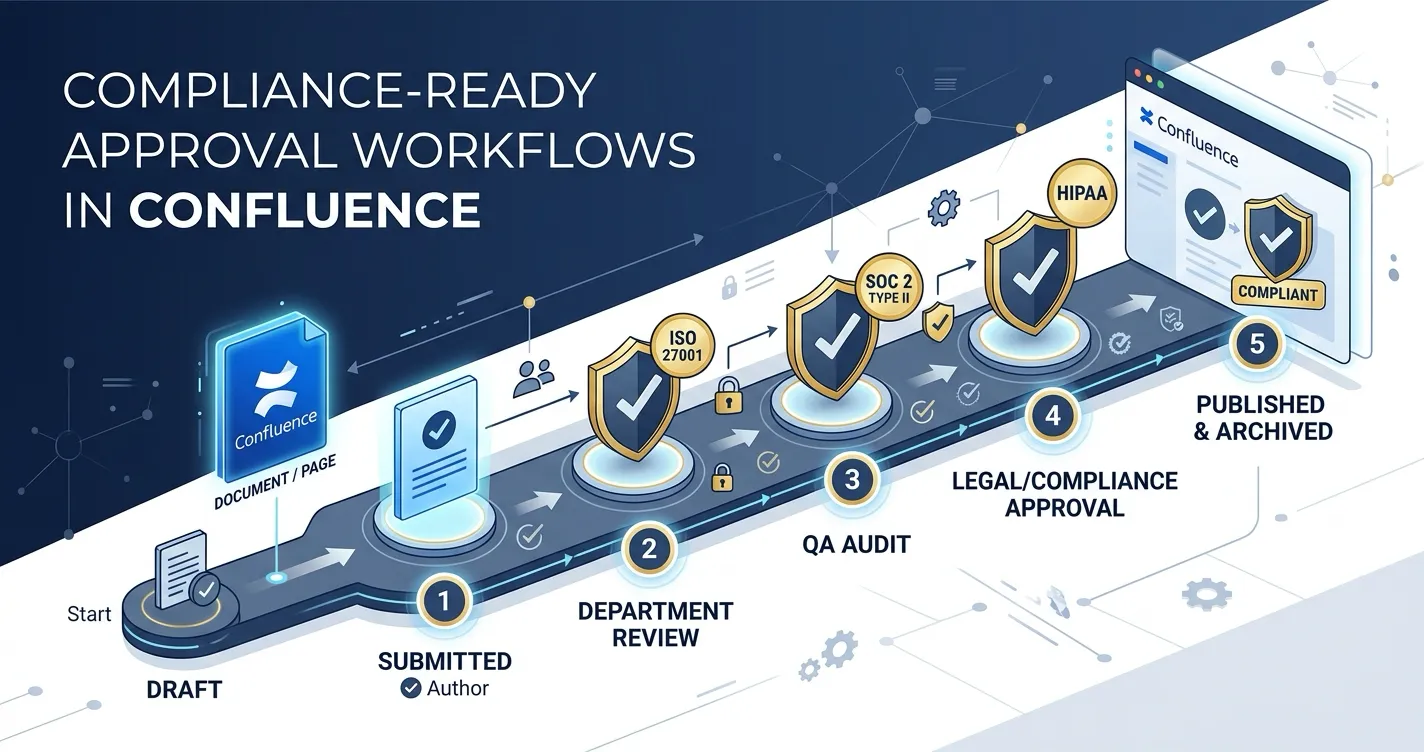
If your organization operates under SOC 2, ISO 27001, HIPAA, or similar compliance frameworks, you already know that document control is not optional. Auditors want evidence that content was reviewed and approved before publication, that changes are tracked, and that approval decisions are tied to specific document versions.
Confluence is where many of these documents live — policies, procedures, runbooks, customer-facing documentation. But Confluence Cloud has no native approval workflow, no version-aware approval tracking, and no built-in way to export approval evidence for auditors.
This post explains how to build compliance-ready approval workflows in Confluence using ApprovalFlow, and maps specific capabilities to the controls that auditors actually check.
What Auditors Look For
Compliance audits that involve document control typically check for three things:
1. Evidence of review and approval. Someone with the right authority reviewed the content and explicitly approved it before publication. Not “I think Jane looked at it” — a recorded decision with a name, a timestamp, and ideally a comment.
2. Version-specific decisions. The approval applies to a specific version of the document. If the document was edited after approval, the auditor wants to know whether the new version was re-reviewed.
3. Traceability. A continuous record from creation through review to approval, including any rejections or revision cycles. The record should be exportable and should not depend on someone’s memory.
These requirements appear across frameworks:
| Framework | Relevant Control | What It Requires |
|---|---|---|
| SOC 2 | CC8.1 (Change Management) | Documented approval for changes to system components, including documentation |
| ISO 27001 | Annex A 7.5 (Documented Information) | Controlled creation, review, and approval of documented information |
| HIPAA | §164.316 (Documentation) | Policies and procedures must be maintained with documented review and approval cycles |
| GxP / 21 CFR Part 11 | Electronic Records | Audit trails with who, when, and what was approved; version-specific sign-off |
Documented approval with named reviewers, timestamps, and change traceability. Version-specific records for document control.
Electronic records with audit trails showing who, when, and what was approved. Version-specific sign-off for regulated documents.
Native Confluence addresses none of these directly. Page restrictions control access but do not enforce review. Page history shows edits but does not record approval decisions. Comments can serve as informal sign-off but are not structured, searchable, or exportable.
How ApprovalFlow Maps to Compliance Controls
ApprovalFlow adds a structured approval lifecycle to Confluence pages. Here is how each capability addresses specific compliance requirements.
Configurable Multi-Step Workflows
Compliance processes often require more than one reviewer. A policy document might need review from the content owner, then legal, then the compliance officer. A customer-facing procedure might need technical review followed by management sign-off.
ApprovalFlow supports sequential multi-step workflows where each step has designated approvers. You can configure whether a step requires approval from any one reviewer or all assigned reviewers. Steps execute in order — step two does not activate until step one is complete.
Compliance mapping: Satisfies the “appropriate authority” requirement in SOC 2 CC8.1 and ISO 27001 A.7.5 by ensuring designated reviewers approve content in a defined sequence.
Version-Aware Approval Tracking
This is where most informal approval processes break down. Someone approves a page on Monday. On Tuesday, an edit is made. On Wednesday, an auditor asks whether the current content was approved.
ApprovalFlow ties every approval decision to a specific page version. When a previously approved page is edited, the system marks that the current version differs from the approved version. The author can resubmit the updated version, starting a new approval cycle. The audit trail shows both cycles — the original approval and the re-approval of the revised version.
Compliance mapping: Directly addresses 21 CFR Part 11 version-specific sign-off requirements and ISO 27001 A.7.5 requirements for controlling changes to documented information.
Structured Audit Trail
Every action in the approval lifecycle is recorded:
- Submission: who submitted, when, which page version
- Approval: who approved, when, which step, optional comment
- Rejection: who rejected, when, required comment explaining why
- Resubmission: who resubmitted, when, which new version
These records appear as structured comments on the page, providing an in-context audit trail that is visible to anyone with page access. The records include @mentions to notify approvers, creating a notification chain that is itself part of the audit evidence.
Compliance mapping: Provides the “who, what, when” traceability required by SOC 2 CC8.1, HIPAA §164.316, and GxP electronic records requirements.
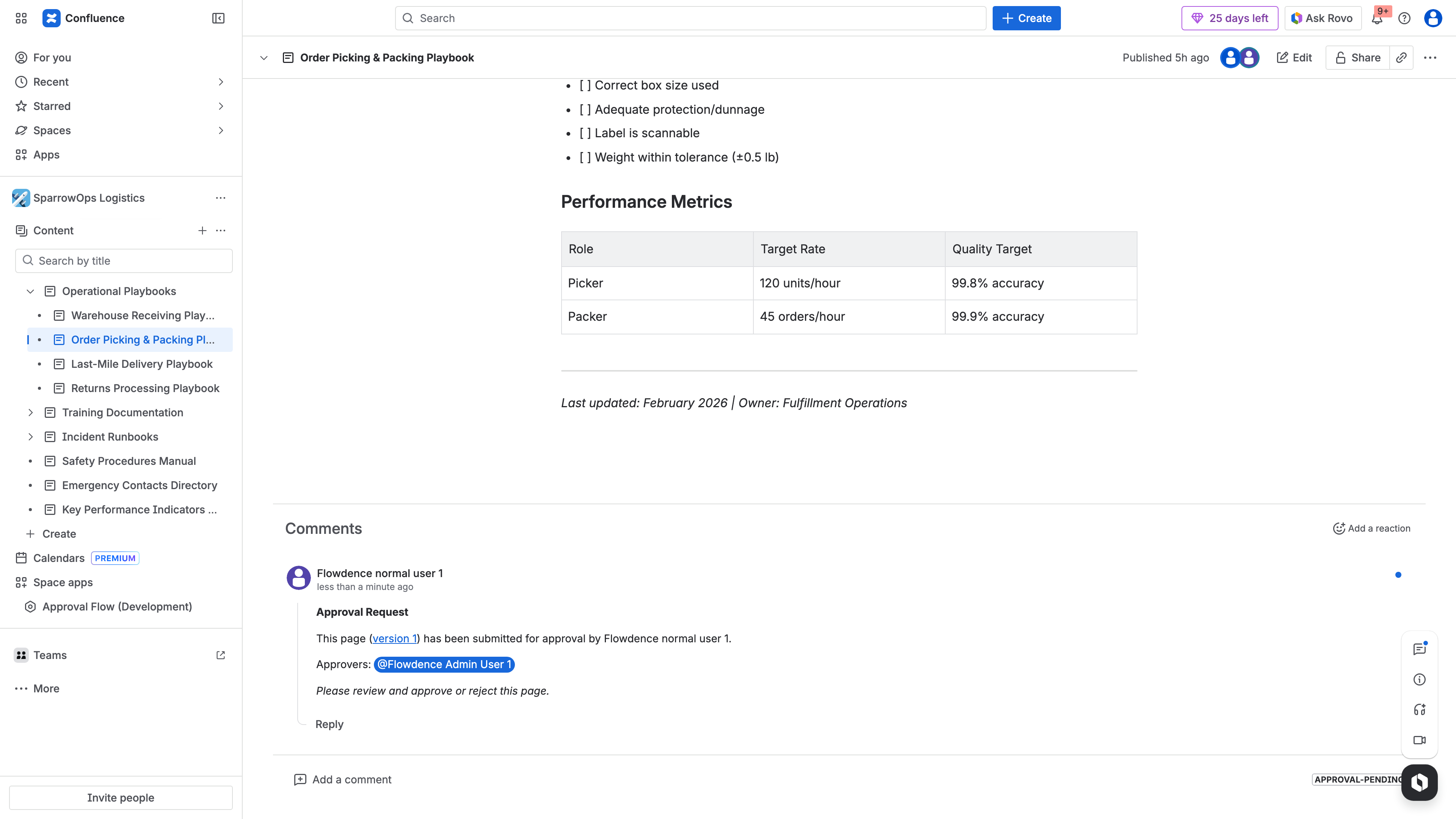
The structured audit trail in ApprovalFlow. Every approval action — submission, approval, rejection — is recorded as a threaded comment with timestamps, approver identity, and version reference.
Exportable Evidence
Auditors do not log into your Confluence instance. They need evidence delivered in a format they can review independently.
ApprovalFlow’s Workflow Analytics dashboard supports filtering by date range, workflow, and status. Results can be exported as CSV (for spreadsheet analysis and evidence packages) or HTML (for formatted audit reports).
The export includes submission dates, approval decisions, approver identities, version numbers, and decision comments — the complete evidence chain an auditor needs to verify your document control process.
Compliance mapping: Satisfies the evidence production requirements in SOC 2 examination procedures and ISO 27001 audit documentation requirements.
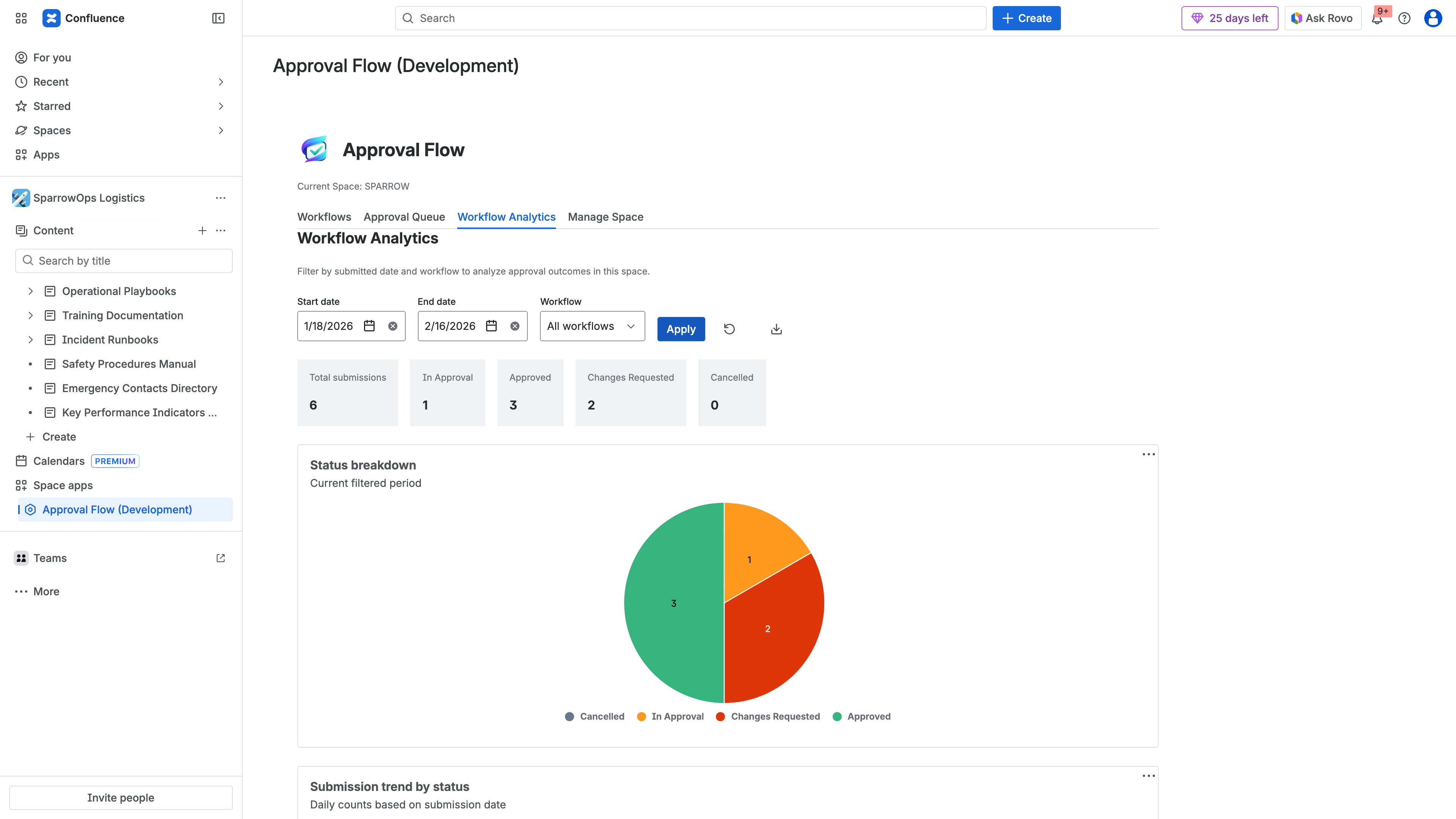
The Workflow Analytics dashboard with date range filtering and CSV/HTML export — ready for compliance evidence production.
Status Visibility
Compliance teams need to know the approval state of documents at a glance. ApprovalFlow uses color-coded status lozenges in the page byline:
- Draft (purple) — not yet submitted for approval
- In Approval (yellow) — submitted and awaiting reviewer decisions
- Approved (green) — all approval steps completed
- Changes Requested (red) — rejected with reviewer feedback
The Approval Queue provides a space-wide view of all pending approvals, making it easy for compliance managers to identify pages that are stuck in review or have been waiting for approval beyond acceptable timeframes.
Compliance mapping: Supports the monitoring and oversight aspects of SOC 2 CC4.1 (Monitoring Activities) and ISO 27001 clause 9.1 (Monitoring, Measurement, Analysis and Evaluation).
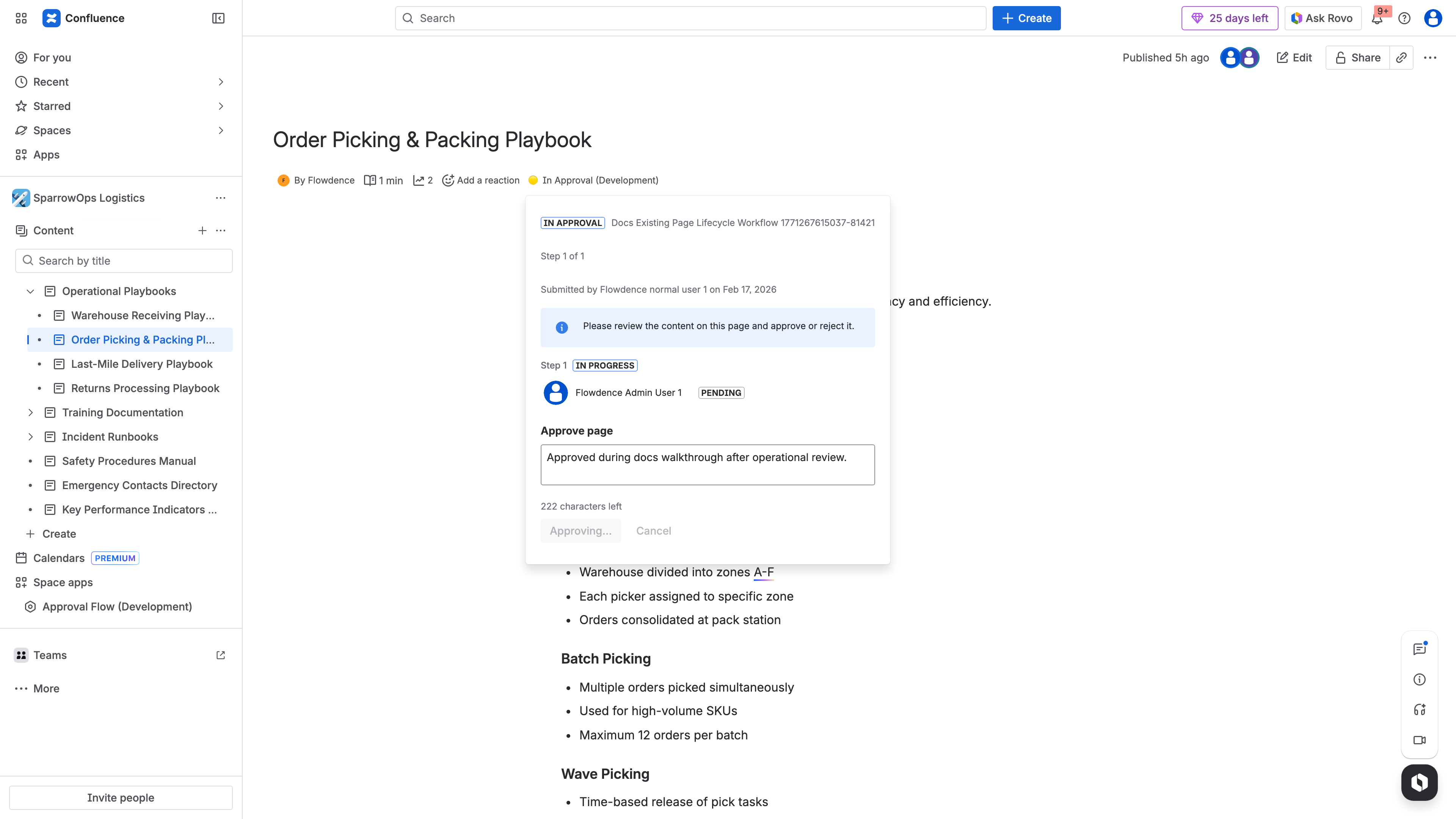
The Approved status in the Confluence byline — color-coded for instant visibility. Compliance managers can see approval state without opening any separate dashboard.
Setting Up a Compliance Workflow
Here is a practical workflow structure for a regulated content space:
Step 1: Define Your Approval Steps
Map your approval steps to the actual review roles in your compliance process. For example:
- Content Owner Review — the subject matter expert verifies accuracy
- Compliance Review — the compliance officer confirms regulatory alignment
- Final Sign-Off — a designated authority (manager, director) provides final approval
In ApprovalFlow, create a workflow with three steps. Assign the relevant people to each step. Choose “all approvers must approve” for steps where multiple reviewers are required.
Step 2: Assign to Regulated Spaces
Use Manage Space to assign the compliance workflow to all pages in the regulated space — or to specific pages that contain controlled documents.
Step 3: Establish a Re-Approval Policy
Decide what happens when approved content is edited. For compliance purposes, the safest approach is to require re-approval for any edit to an approved page. Communicate this to content owners so they know that editing an approved document will trigger a new review cycle.
A compliance approval workflow with three sequential steps. When an approved page is edited, the version-aware system flags it for resubmission — maintaining continuous compliance.
Step 4: Set Up Monitoring
Use Workflow Analytics to track:
- Approval rates — what percentage of submissions are approved on first review
- Rejection patterns — which steps have the highest rejection rates (indicating potential training needs)
- Time-to-approval — how long pages spend in each approval step
- Outstanding approvals — pages waiting for review beyond your SLA
Export these metrics on a schedule that aligns with your audit cycle — monthly, quarterly, or as defined by your compliance framework.
What This Looks Like During an Audit
When an auditor asks “show me your document approval process for Confluence,” you can provide:
- Process documentation: Your workflow configuration showing defined approval steps and designated reviewers
- Evidence of execution: Exported approval records showing actual approvals with timestamps, approver names, and version numbers
- Monitoring evidence: Analytics exports showing approval rates, rejection patterns, and review cycle times over the audit period
- Version control evidence: The link between approval decisions and specific page versions, demonstrating that edits trigger re-review
This transforms the audit response from “we ask people to review things in Confluence” to a documented, evidenced, and measurable control.
Data Residency and Architecture
For compliance teams evaluating tooling, the architecture matters:
- Forge-hosted: ApprovalFlow runs entirely on Atlassian Forge infrastructure. No external servers, no data leaving Atlassian’s environment.
- Zero external subprocessors: All data processing happens within the Atlassian tenant. This simplifies data processing agreements and reduces your vendor risk surface.
- Atlassian-managed storage: Approval records are stored using Forge’s storage APIs within your Atlassian infrastructure.
This architecture means adding ApprovalFlow does not introduce new data residency concerns or require updates to your Data Processing Agreement beyond your existing Atlassian relationship.
Getting Started
ApprovalFlow is available on the Atlassian Marketplace with a free tier for the first 10 users. For compliance teams evaluating the tool, this means you can run a proof of concept on a pilot space without procurement approval.
For detailed setup instructions, see the ApprovalFlow documentation. The multi-step approvals tutorial walks through configuring your first workflow end-to-end.