
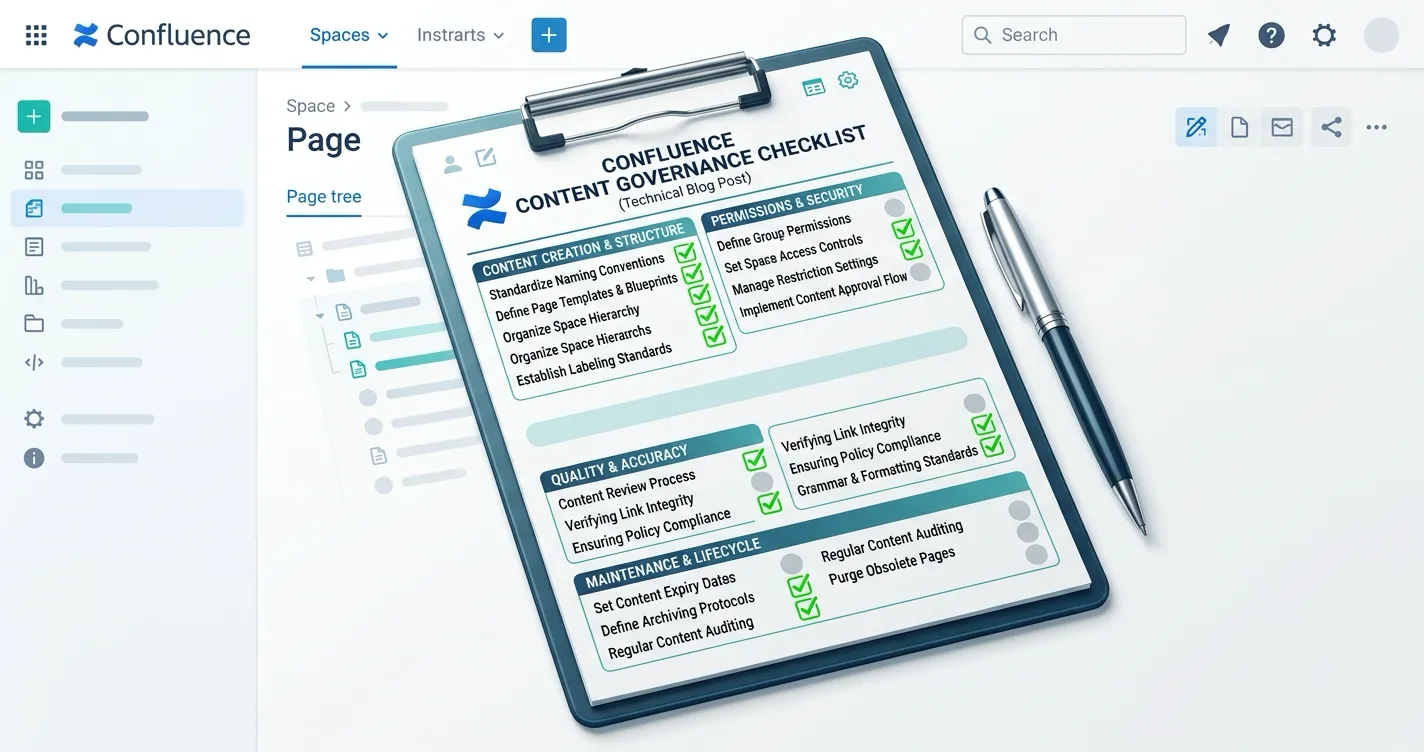
This post is for compliance officers, content operations managers, and Confluence administrators who need to move beyond informal review processes and establish structured content governance.
If your organization uses Confluence for policies, procedures, technical documentation, or any content that requires sign-off before publication, you already have a governance problem — whether you know it or not. Pages get published without review. Edits slip through after approval. There is no reliable record of who approved what, or when.
This checklist gives you a practical framework to fix that. Each section covers one governance domain with specific actions you can implement today.
Why Content Governance Matters in Confluence
Confluence is built for collaboration, not control. That is a feature for most teams, but a liability for compliance-sensitive content. Without explicit governance:
- Regulated content gets published without approval. SOPs, policies, and compliance documentation go live the moment someone clicks Publish. There is no gate.
- Edits after approval go undetected. A page can be approved on Monday and silently edited on Tuesday. The approval is now meaningless, but the status still looks green.
- Audit evidence does not exist. When a compliance reviewer asks “who approved this document and when?”, the answer is often “we think it was reviewed in a meeting.”
- Ownership is unclear. Nobody knows which pages require governance, which spaces have active workflows, or which content is overdue for review.
Structured governance solves these problems by making review, approval, and traceability explicit rather than assumed.
The Checklist
Use this as a working document. Each item is an action you can evaluate, implement, or delegate. Check off what you have in place. Everything unchecked is a gap.
1. Define Which Content Requires Governance
Not every Confluence page needs an approval workflow. Over-governing creates friction that teams work around. Under-governing leaves compliance gaps.
- Identify governed content types. List the categories that require formal approval: policies, SOPs, regulatory filings, customer-facing documentation, security procedures, HR policies, financial disclosures, etc.
- Map content types to Confluence spaces. Document which spaces contain governed content. If governed and ungoverned content is mixed in the same space, plan to separate them or apply selective workflows.
- Define the governance boundary. Decide whether governance applies at the space level, the page tree level, or the individual page level. Space-level governance is simpler to administer; page-level governance is more precise.
- Document exceptions. If certain page types within a governed space are exempt (drafts, meeting notes, internal scratchpads), make the exclusion policy explicit.
2. Establish Approval Workflows
An approval workflow defines who must review content, in what order, and what happens when content is rejected or returned for changes.
- Define approval steps per content type. A simple policy page might need one approver. A regulated SOP might need sequential approval from a subject-matter expert, a legal reviewer, and a compliance officer.
- Assign named approvers or roles. Specify whether approval is tied to named individuals (e.g., “Jane Smith, Compliance Lead”) or roles (e.g., “any member of the Legal Reviewers group”). Role-based assignment scales better.
- Choose between “any approver” and “all approvers” per step. Some steps require unanimous sign-off. Others are satisfied when any one designated reviewer approves. Configure this deliberately.
- Set up approval workflows in your tooling. Native Confluence does not include multi-step approval workflows. Use a Marketplace app like ApprovalFlow to configure workflows with named steps, designated approvers, and status tracking directly in Confluence.
- Name workflows consistently. Use a naming convention like
<Department> <Purpose> Workflow(e.g., “Legal Policy Review Workflow”) so admins and authors can identify the right workflow quickly.
3. Enforce Version-Aware Approvals
This is the governance gap most teams miss. Standard approval processes approve “the page.” But pages change. If someone edits an approved page, the approval should not carry forward to the new version automatically.
- Require version-specific approval. Each approval decision should be anchored to an exact page version number. “Approved” means “version 7 was approved,” not “this page was approved at some point.”
- Configure resubmission on edit. When an approved page is edited, it should automatically revert to a “needs review” state. The author should be required to resubmit the new version for approval. ApprovalFlow handles this with version-aware resubmission — editing an approved page creates a new draft version that must go through the workflow again.
- Make version status visible. Approvers and readers should see at a glance whether they are looking at the approved version or a post-approval edit. Status lozenges in the page byline (Draft, In Approval, Approved, Changes Requested) make this immediately clear.
- Validate version tracking in your audit trail. Confirm that your approval records include the page version number for each decision. Without this, your audit evidence cannot prove which exact content was approved.
4. Build a Complete Audit Trail
An audit trail is only useful if it captures enough detail to answer compliance questions without additional investigation.
- Verify that every approval action is recorded. Submissions, approvals, rejections, resubmissions, and cancellations should all generate audit records.
- Confirm actor identification. Each record should include who performed the action — not just “approved” but “approved by Jane Smith at 2026-03-15T14:23:00Z.”
- Capture decision rationale. Approvers should be able to include comments with their decisions. “Approved — reviewed against Q1 compliance requirements” is vastly more useful than a bare approval record.
- Include version references. Each audit record should reference the specific page version that was acted upon.
- Test audit export. Before your next compliance review, export your approval history and verify it contains the fields your auditors expect. ApprovalFlow supports CSV and HTML export from the Workflow Analytics dashboard.
- Retain audit records independently. If someone deletes a Confluence page, do your approval records survive? Understand your tooling’s data retention model and plan accordingly.
5. Monitor Approval Health
Setting up workflows is step one. Monitoring whether they are working is step two.
- Track approval throughput. How many pages are submitted, approved, rejected, and resubmitted per week or month? A sudden drop in submissions might mean teams are bypassing the workflow.
- Monitor approval queue depth. If pages sit “In Approval” for weeks, your workflow is a bottleneck. Identify which approvers or steps create delays.
- Review approval analytics regularly. Use dashboard views that show submission counts, status distribution, and trends over time. ApprovalFlow’s Workflow Analytics dashboard provides these metrics with date range filtering and per-workflow breakdowns.
- Set review cadence for governance health. Schedule a monthly or quarterly governance review where compliance leads examine approval metrics, identify bottlenecks, and adjust workflows as needed.
- Flag pages with no workflow assigned. In governed spaces, every page that matches your governance criteria should have an active workflow. Audit for unassigned pages periodically using the Manage Space view.
6. Manage Access and Permissions
Governance is only as strong as the permissions that enforce it. If anyone can bypass an approval workflow, the workflow is decorative.
- Restrict workflow configuration to space admins. Only designated administrators should be able to create, modify, or disable approval workflows.
- Separate author and approver roles. The person who writes a page should not be the same person who approves it. Enforce separation of duties in your workflow design.
- Use Confluence space permissions alongside workflow tooling. Approval workflows control the review process; space permissions control who can view, edit, and publish pages. Both layers should align.
- Audit permission changes. If someone gains or loses admin access in a governed space, that change should be logged and reviewable.
- Document your access policy. Write down who has what role, in which spaces, and why. Store this document in a governed space with its own approval workflow — governance should govern itself.
7. Plan for Content Lifecycle
Governance does not end at approval. Content ages, regulations change, and approved pages can become outdated or non-compliant over time.
- Define review periods for governed content. Policies might need annual review. SOPs might need quarterly review. Set explicit review dates based on content type and regulatory requirements.
- Track content age. Know when each governed page was last approved. If a policy was approved 18 months ago and your review period is annual, that page is overdue.
- Establish a revalidation process. When a review period expires, the content owner should be prompted to either resubmit for approval (confirming it is still current) or update and resubmit.
- Handle deprecated content explicitly. When a governed page is no longer needed, archive or label it clearly. Do not leave deprecated policies sitting in active spaces where they might be mistaken for current guidance.
Putting It Into Practice
You do not need to implement everything on this list at once. Start with the highest-risk content:
- Week 1: Identify your top 3 governed spaces and the content types within them.
- Week 2: Set up approval workflows for those spaces using ApprovalFlow for Confluence. Configure named steps and approvers for each content type.
- Week 3: Run a pilot. Have content owners submit pages through the workflow and collect feedback on friction points.
- Week 4: Review your audit trail. Export approval records and verify they meet your compliance requirements. Adjust workflows based on pilot feedback.
- Ongoing: Expand governance to additional spaces. Monitor approval health monthly. Review and update workflows quarterly.
Related Resources
- ApprovalFlow vs Comala vs AppFox: Confluence Approval Tools Compared — if you are evaluating approval tools, this comparison covers features, pricing, and tradeoffs
- ApprovalFlow Product Documentation — setup guides, workflow configuration, and feature reference
- ApprovalFlow on Atlassian Marketplace — install and try free for teams up to 10 users
FAQ
What is content governance in Confluence?
Content governance in Confluence is the set of policies, workflows, and controls that ensure published pages are reviewed, approved, and traceable. It covers who can publish content, what approval steps are required before publication, how changes to approved content are handled, and how audit evidence is maintained.
Without governance, Confluence operates on a trust model — anyone with edit access can publish anything. Governance adds structure where trust alone is not sufficient, particularly for regulated industries, compliance-sensitive documentation, and organizations with formal quality management requirements.
How do you enforce page approvals in Confluence Cloud?
Confluence Cloud does not include built-in multi-step approval workflows. The native platform supports page restrictions (who can view or edit) but not structured approval routing.
Teams enforce approvals using Marketplace apps that add workflow capabilities on top of Confluence. ApprovalFlow by Flowdence adds configurable multi-step approval workflows with byline-based submission, version-aware tracking, status lozenges, approver notifications, and audit trails — all within the native Confluence page experience.
What should a Confluence content governance policy include?
At minimum, a governance policy should define:
- Scope: which spaces and content types are governed
- Workflow rules: how many approval steps, who can approve, and whether unanimous or any-approver sign-off is required
- Version handling: what happens when approved content is edited
- Audit requirements: what records are kept and how they are exported
- Review cadence: how often governed content is re-evaluated
- Access controls: who can configure workflows, who can approve, and how separation of duties is maintained
Document this policy in Confluence itself — in a governed space, naturally — so it is subject to the same review process as the content it governs.
Can you audit content approvals in Confluence?
Yes, with the right tooling. ApprovalFlow records every approval action with timestamps, actor identifiers, page version numbers, and decision comments. These records are available in the Workflow Analytics dashboard and can be exported as CSV or HTML for compliance reviews and external audits.
The key question for compliance teams is not just “can we audit?” but “does the audit record contain enough detail?” Verify that your export includes the version number, the approver identity, the decision timestamp, and any reviewer comments before relying on it for regulatory evidence.
Does Confluence support version-aware approvals out of the box?
No. Confluence tracks page versions natively (every edit creates a new version), but it does not tie approval decisions to specific versions. A page can be approved, edited five times, and still show no indication that the current content differs from what was actually reviewed.
Version-aware approval is the mechanism that connects “approved” to “version 7 was approved.” When version 8 is created by an edit, the approval status should reset, requiring the new version to go through the workflow again. ApprovalFlow provides this version-aware resubmission behavior as a core feature.