
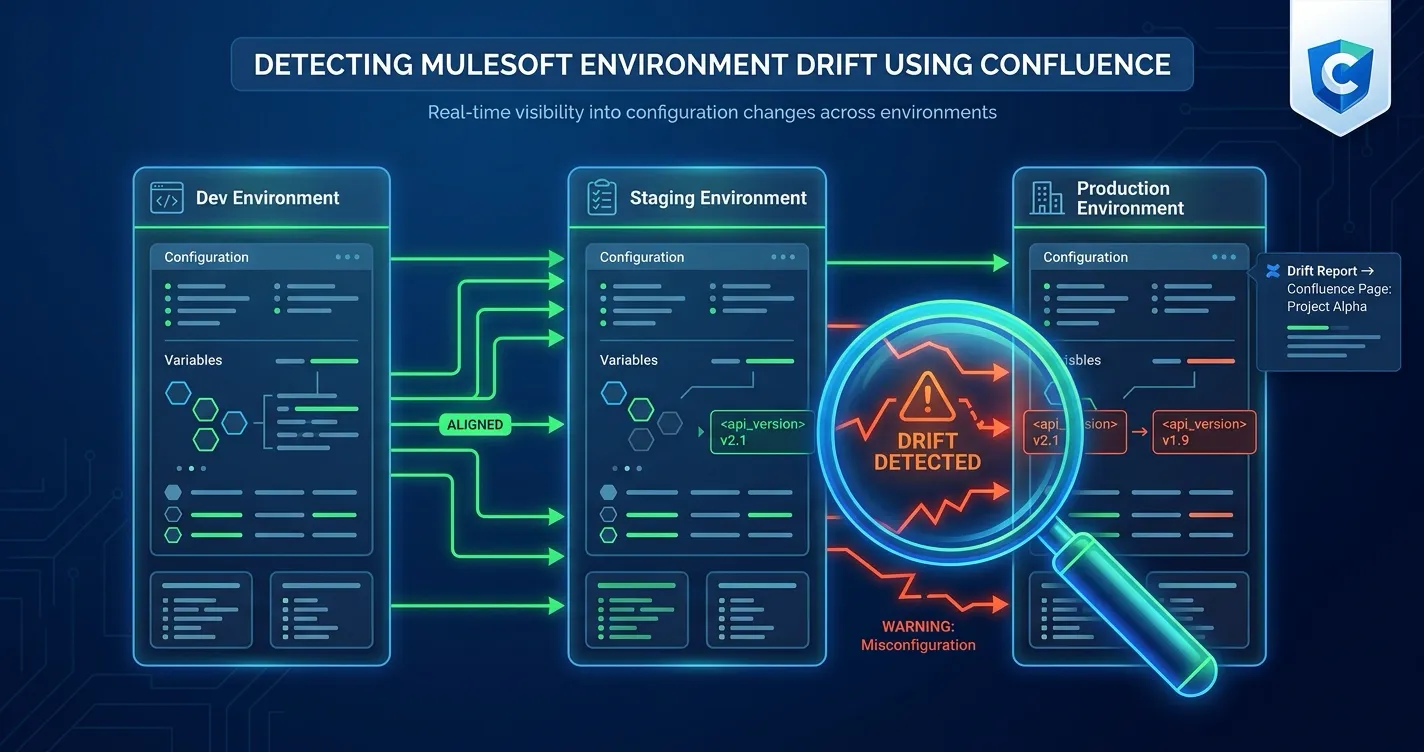
You deploy an API to staging. QA verifies it. You promote to production. Two weeks later, someone patches staging directly for a hotfix test. A month after that, a policy gets added to production but not backported to lower environments. Nobody notices because nobody is comparing.
This is environment drift — and if you manage MuleSoft integrations across multiple environments, it is probably happening to you right now.
Environment drift is not a dramatic failure. It is a slow divergence. Dev, staging, and production gradually stop being mirrors of each other. The result is that what works in staging does not work in production, what you test is not what you ship, and the documentation your team relies on is quietly wrong.
This post explains what environment drift looks like in MuleSoft, why it is hard to catch with standard tools, and how MuleSight makes drift visible inside Confluence — where your team already documents and coordinates their integration work.
What MuleSoft Environment Drift Actually Looks Like
Drift is not a single event. It accumulates across three dimensions:
Presence Drift
A resource exists in one environment but not another. An API is deployed to staging and production but was never promoted to the sandbox environment. A CloudHub application runs in dev but was removed from staging during a cleanup. Presence drift means your environments are not structurally equivalent.
Version Drift
The same resource exists in multiple environments but runs different artifact versions. Production is on v2.3.1 of your order processing API, but staging still runs v2.1.0 because the last two promotions skipped it. Version drift means your test environment no longer reflects production behavior.
Status Drift
A resource is deployed everywhere but has different runtime states. A CloudHub application is RUNNING in production but STOPPED in staging. An API instance is ACTIVE in dev but INACTIVE in QA. Status drift means you cannot trust your lower environments as valid test targets.
In practice, most teams experience all three simultaneously. The combination is what makes drift dangerous — a single version mismatch might be fine, but presence drift plus version drift plus status drift across a dozen APIs means your environments have silently become different systems.
The three dimensions of MuleSoft environment drift. Most teams experience all three simultaneously — the combination is what makes drift dangerous.
Resource exists in one environment but not another. You think it is deployed everywhere — it is not.
Same resource, different artifact versions. Your test environment no longer reflects production.
Same resource, different runtime states. RUNNING in production, STOPPED in staging — testing becomes unreliable.
Why Standard Tools Miss Drift
MuleSoft Anypoint Platform provides strong tools for managing individual environments. Anypoint Monitoring tracks runtime metrics. Runtime Manager shows what is deployed where. API Manager handles policies and SLA tiers. But none of these tools are designed to answer the cross-environment comparison question: “Are my environments consistent with each other?”
Here is why drift slips through:
Anypoint Monitoring focuses on runtime performance. It tells you that an API is responding slowly or throwing errors. It does not tell you that the API is running a different version in staging than production, or that a security policy was removed from one environment.
Runtime Manager is scoped to a single environment. You can see everything deployed in production, and you can see everything deployed in staging, but comparing them side-by-side requires switching back and forth and doing the comparison manually. With 20 or 30 APIs across 3 or 4 environments, manual comparison is not realistic.
Deployment pipelines track forward motion, not consistency. Your CI/CD pipeline knows what it deployed and where. It does not know about manual changes, out-of-band hotfixes, or resources that were deleted directly in the Anypoint console. Pipeline history tells you what should be deployed, not what actually is.
Documentation goes stale. Teams that track their integration landscape in spreadsheets or Confluence tables are doing the right thing — but those documents reflect what was true at the time someone last updated them. They do not update themselves when an environment changes.
The net effect is that drift accumulates invisibly. Each tool shows its own slice of truth, but nobody has the cross-environment view.
How MuleSight Detects Drift in Confluence
MuleSight is a Confluence Cloud app that brings live MuleSoft Anypoint data into Confluence pages. It connects to your Anypoint Platform through a read-only Connected App and pulls deployment, version, and status information across your environments.
The drift detection capability works through the Environment Comparison feature, which compares the same logical resources across multiple environments on a single screen.
Environment Comparison Dashboard
The Environment Comparison dashboard lets you select two or more MuleSoft environments (for example, Sandbox, Staging, and Production) and view all resources side by side. For each resource, MuleSight checks:
- Is it present in all selected environments? If an API exists in production but not staging, it is flagged.
- Do artifact versions match? If a CloudHub app runs v3.0.0 in production but v2.8.1 in staging, the version difference is highlighted.
- Are runtime statuses consistent? If an application is RUNNING in production but STOPPED in dev, the status mismatch is flagged.
Resources with no differences across environments show as clean. Resources with any drift are surfaced so you can investigate and decide whether the difference is intentional or a problem.
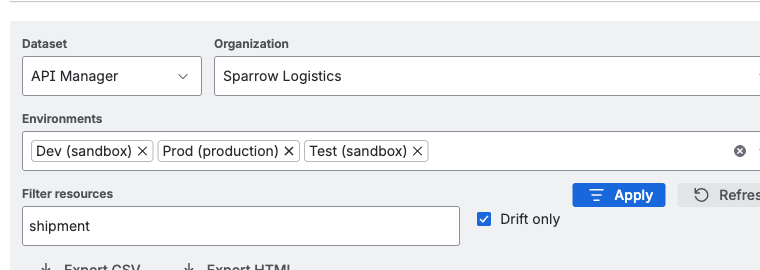
The MuleSight Environment Comparison dashboard. Resources are compared side-by-side across selected environments, with drift indicators highlighting presence, version, and status differences.
API Security Posture Comparison
Drift is not just about deployments and versions. Security policies can drift too — and policy drift is often more consequential than version drift because it affects access control and data protection.
MuleSight includes API Security Posture scanning that compares enabled policies by template identity across environments. This catches cases like:
- A rate limiting policy applied in production but missing in staging
- Client ID enforcement enabled in one environment but not another
- An IP allowlist policy added to production that was never added to lower environments
The security comparison is designed to be non-noisy. It compares only enabled policies, ignores disabled policies and minor version differences in policy templates, and treats contract counts as informational rather than drift indicators.
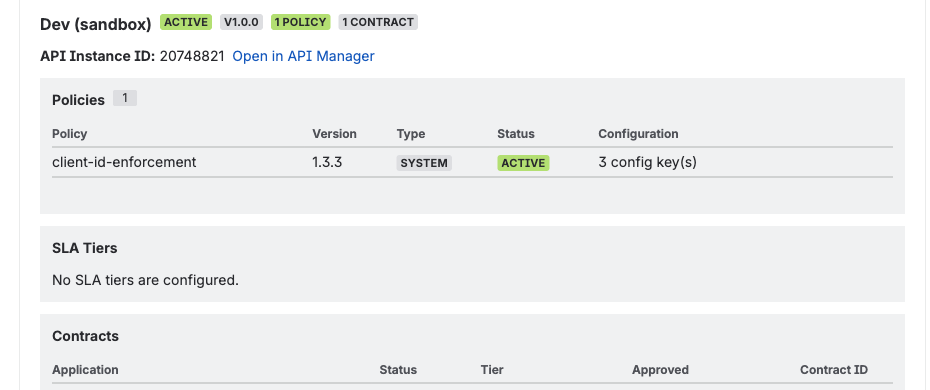
API Security Posture scanning in MuleSight. Enabled policies are compared by template identity across environments — catching cases where security policies are inconsistent.
Embedded Snapshots on Confluence Pages
Beyond the comparison dashboard, MuleSight provides link-to-snapshot macros that let you embed live Anypoint data directly into your Confluence documentation pages. Paste an Anypoint URL for an Exchange asset, Runtime Manager application, or API Manager instance, and MuleSight renders a live snapshot card showing current status, version, and environment details.
These embedded snapshots serve as living documentation. When a team member reads your integration architecture page, they see current state — not whatever was true when someone last edited the page. If an environment has drifted from what the page describes, the snapshot makes that visible immediately.
Environment Summary Tiles
For teams that want a high-level view, the Environment Summary macro provides a status tile showing drift counts and the last sync timestamp. Drop these tiles into a team dashboard page and you have a quick health check: zero drift means environments are consistent, any non-zero count warrants investigation.
Building a Drift Detection Practice
Installing MuleSight gives you the capability to detect drift. Building it into your team’s workflow is what makes it effective.
Set Up a Dedicated Drift Review Page
Create a Confluence page that serves as your environment consistency dashboard. Include:
- Environment Comparison views for your critical integration resources
- Environment Summary tiles for each environment pair you care about
- A section for notes on known intentional differences (for example, “Sandbox is expected to have experimental APIs that are not in production”)
Link this page from your team space homepage so it is easy to find.
Review Drift Weekly
Add a 15-minute drift review to your weekly integration standup or operations check-in. Pull up the comparison dashboard and walk through any flagged resources. For each one, determine:
- Is this drift intentional? (Feature branch in staging, A/B test in production, etc.)
- Is this drift a missed deployment? (Promote and resolve.)
- Is this drift from an out-of-band change? (Investigate who changed it and why.)
Documenting your decisions directly on the Confluence page creates an audit trail and prevents the same drift from being re-investigated next week.
Integrate with Your Deployment Process
Use MuleSight snapshots as post-deployment verification. After promoting a release to production, check the Environment Comparison to confirm that the target environment now matches your expectations. This catches cases where a deployment partially succeeded or where a manual step was missed.
Monitor Security Policy Consistency
For teams in regulated industries or those with strict API governance requirements, review the Security Posture comparison monthly. Policy drift is less frequent than version drift, but its impact is larger — a missing authentication policy in production is a security gap, not just a consistency issue.
What MuleSight Is Not
MuleSight operates at the documentation and visibility layer. It is important to understand what it does and does not replace:
MuleSight is not an operational monitoring tool. It does not track request throughput, latency percentiles, or error rates. Use Anypoint Monitoring or your APM tool for that.
MuleSight is not a deployment tool. It does not promote or deploy resources between environments. It shows you what is deployed and where it differs — you still use your existing CI/CD pipeline or Anypoint Runtime Manager to act on what you find.
MuleSight is not a change management system. It does not track who made a change or when. It shows the current state across environments. Pair it with your deployment logs and Confluence page history for the full change audit trail.
MuleSight is read-only. It connects to Anypoint Platform using GET-only API calls through a Connected App with read-only OAuth scopes. It never writes, deploys, or modifies anything in your MuleSoft environments.
What MuleSight does is fill the specific gap that other tools leave open: the cross-environment consistency view, delivered where your team already works — in Confluence.
The Cost of Ignoring Drift
Environment drift rarely causes a sudden outage. Instead, it creates a steady stream of small problems that erode confidence and waste time:
- A bug is “fixed” in staging but the fix is never deployed to production because nobody realized the environments diverged.
- A security audit reveals that production APIs have different policies than what is documented, triggering a scramble to reconcile.
- A new team member provisions a test environment based on documentation that no longer matches reality, and spends days debugging phantom issues.
- A performance test in staging produces misleading results because staging is running a different version than production.
Each of these individually is a minor incident. Together, they represent a systemic reliability problem rooted in a single cause: nobody can see whether environments match.
Making drift visible is the first step to controlling it. Once your team can see drift, they can decide which differences are acceptable, which need to be resolved, and how quickly. Without visibility, drift just accumulates until it causes a problem big enough to notice.
Getting Started
If you manage MuleSoft integrations and document your work in Confluence, try MuleSight. It is free for up to 10 users, $1.55/user/month for teams of 251–1,000 users, and includes a 30-day free trial on all plans.
- Install MuleSight from the Atlassian Marketplace
- Configure a read-only Connected App in your MuleSoft Anypoint Platform
- Set up your environments in MuleSight space settings
- Run your first Environment Comparison to see current drift
You may be surprised by what you find. Most teams discover drift they did not know existed within the first comparison.
Related Resources
- How MuleSight Surfaces Integration Failures Before They Escalate — how MuleSight detects and surfaces broader integration issues beyond drift
- Your MuleSoft Documentation Is Already Stale — why static MuleSoft documentation fails and how live snapshots solve it
- MuleSight Product Documentation — setup guides, configuration, and feature reference
FAQ
What is MuleSoft environment drift?
Environment drift occurs when the same logical MuleSoft resource differs across environments. This includes three types:
- Presence drift — a resource is deployed in one environment but missing in another
- Version drift — different artifact versions of the same resource across environments
- Status drift — different runtime states (RUNNING vs STOPPED, ACTIVE vs INACTIVE) for the same resource
Drift accumulates silently over time through manual changes, partial deployments, hotfixes applied to individual environments, and cleanup operations that are not replicated. It often surfaces only when something breaks in production or when an audit reveals inconsistencies.
How does MuleSight detect MuleSoft environment drift?
MuleSight connects to your Anypoint Platform through a read-only Connected App and compares the same logical resources across selected environments on a single screen. It checks three dimensions for each resource: presence (is it deployed?), version (do artifact versions match?), and status (is it running?). When any dimension differs between environments, MuleSight flags the resource as drifted.
MuleSight also includes API Security Posture scanning that compares enabled policies across environments by template identity, catching cases where security policies are inconsistent.
Does MuleSight replace MuleSoft monitoring tools like Anypoint Monitoring?
No. MuleSight and Anypoint Monitoring serve different purposes. Anypoint Monitoring tracks runtime performance metrics — throughput, latency, error rates, and resource utilization. MuleSight tracks configuration consistency — whether the same resources are deployed with the same versions and policies across your environments.
The two are complementary. Anypoint Monitoring tells you a service is slow or failing. MuleSight tells you that service is running a different version in staging than production, or that a security policy was removed from one environment. Both are necessary for a complete operational picture.
Can MuleSight detect security policy drift across MuleSoft environments?
Yes. MuleSight includes API Security Posture scanning that compares enabled policies by template identity across environments. If an API has a rate limiting policy in production but not in staging, or a client enforcement policy applied in one environment but missing in another, MuleSight flags the difference.
The comparison is designed to be non-noisy — it compares only enabled policies, ignores disabled policies and minor version differences in policy templates, and treats contract counts as informational rather than drift indicators.
Is MuleSight read-only? Does it modify anything in MuleSoft?
Yes, MuleSight is entirely read-only. It uses GET-only API calls against Anypoint Platform through a MuleSoft Connected App configured with read-only OAuth scopes. It never writes, deploys, or modifies MuleSoft resources. The required scopes cover reading organization, environment, Exchange, API, application, and Runtime Fabric data — no write scopes are needed.