
Platform teams managing MuleSoft integrations face a recurring problem: knowing whether API security configuration is consistent across environments. Policies applied in production might not match staging. SLA tiers configured for one environment might be missing in another. Client contracts could exist in development but never make it to production.
Checking this manually means logging into Anypoint Platform, navigating to each API instance in each environment, and comparing policy lists, tier configurations, and contract details side by side. For organizations managing dozens or hundreds of APIs, this is not a realistic audit process.
This post shows how to use MuleSight to audit API security posture across your MuleSoft environments directly from Confluence — without switching between browser tabs or manually comparing configurations.
What API Security Posture Means
API security posture is the combination of three elements applied to each API instance:
Policies — the rules enforced on API traffic. Rate limiting, client ID enforcement, JWT validation, IP allowlisting, message logging. These are the controls that determine what traffic reaches your API implementation and what gets rejected.
SLA tiers — the service level definitions that govern how different API consumers interact with your APIs. A “Gold” tier might allow 1000 requests per minute while a “Silver” tier allows 100. Tiers that exist in staging but not production mean consumers cannot be properly onboarded.
Contracts — the agreements between API consumers (client applications) and your API instances. Contracts bind a consumer to a specific SLA tier. Missing or mismatched contracts mean consumers may have different access levels across environments.
When any of these three dimensions differ between environments, you have a security posture gap. The API might be functionally deployed everywhere, but its security configuration is inconsistent.
The Blind Spots
Most teams discover posture gaps reactively — during an incident, a compliance audit, or when a consumer reports unexpected behavior in production. The root causes are predictable:
Policy drift. A developer adds a rate-limiting policy in staging during testing. The deployment pipeline promotes the API code but not the policy configuration. Production runs without rate limiting until someone notices.
Configuration drift. The same policy name is applied in both environments, but the configuration parameters differ. A JWT validation policy in staging might accept tokens from a test identity provider, while production should only accept tokens from the corporate IdP. The policy appears consistent at a glance, but the configuration creates a security gap.
Tier and contract gaps. New SLA tiers are created in one environment during development but never replicated to production. When it is time to onboard a consumer, the expected tier does not exist, causing delays or workarounds.
Inconsistent policy ordering. Even when the same policies are applied, the order in which they execute can differ between environments. Policy ordering affects behavior — a CORS policy before authentication behaves differently than authentication before CORS.
These blind spots persist because Anypoint Platform does not provide a built-in cross-environment comparison for security configuration. You can see what is applied to a single API in a single environment, but comparing across environments requires manual effort.
How MuleSight Surfaces Security Posture
MuleSight’s API Security Posture tab provides a purpose-built view for cross-environment security auditing. Here is how it works.
The Posture Overview
When you open the API Security Posture tab in the MuleSight Dashboard, you see a filterable list of all APIs discovered across your configured environments. Each row shows the API name, the environments where it is deployed, and a summary of its security configuration.
Use the search and filter controls to narrow the view to the APIs you care about — filter by environment, by name, or by a specific API group.
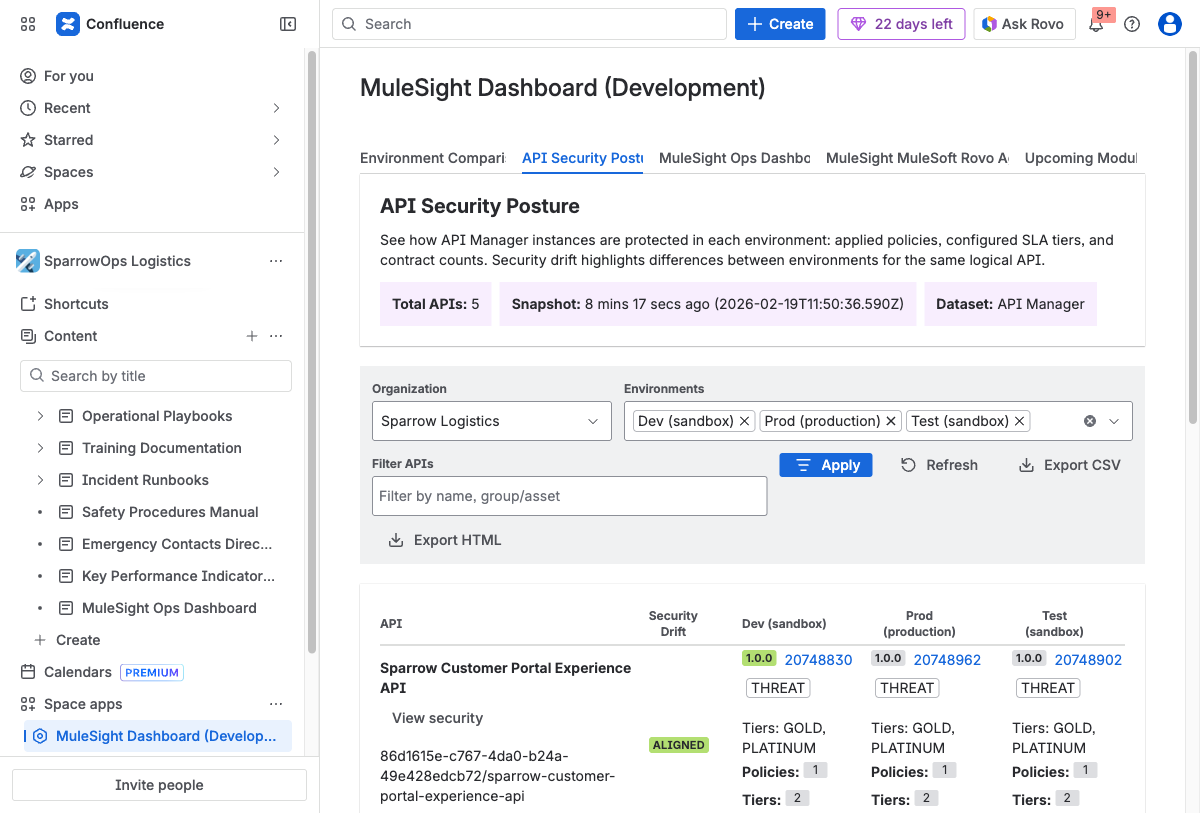
The API Security Posture overview lists every API discovered across your configured environments. Each row shows the API name, per-environment versions and instance IDs, security drift status, policy counts, SLA tiers, and contract totals. Use the filter bar to narrow by name or API group, and export findings as CSV or HTML.
The Security Drilldown
Click “View security” on any API row to open the detailed security modal. This is where the real audit value is.
The modal shows three sections for each environment where the API is deployed:
Policy comparison. Which policies are applied in each environment, along with their configuration summaries. This is where you catch false alignment — cases where a policy exists in both environments but with different parameters.
SLA tier comparison. Which tiers are defined in each environment. Missing tiers are immediately visible because the environment column shows no entry.
Contract comparison. Which client applications have active contracts in each environment, and which SLA tier each contract uses.
If an API is marked NOT DEPLOYED in an environment, that environment column appears empty in all three sections — making it obvious that the API’s security posture is incomplete.
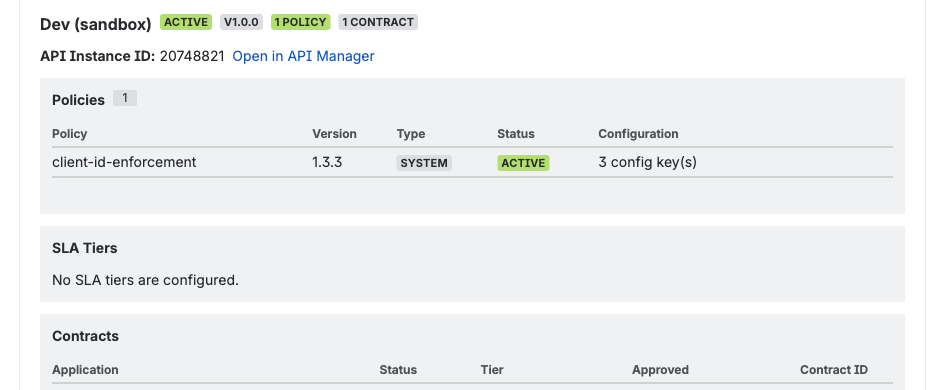
The security drilldown for a single API instance. This view shows the exact policies applied (here, client-id-enforcement v1.3.3), SLA tier configuration, and active contracts — all for one environment. Compare this side by side with other environments to spot configuration drift that summary views might miss.
Exporting Findings
For sharing audit results with security teams or attaching evidence to compliance reports, export the current view as CSV or HTML. The export captures the filtered state, so you can create focused reports for specific API groups, environments, or time periods.
Running a Security Posture Audit
Here is a practical process for auditing API security posture using MuleSight:
A typical security posture audit follows six steps — from scoping the review to documenting findings. MuleSight’s dashboard supports each step with filterable views, drilldown modals, and one-click exports.
1. Set Your Scope
Decide which APIs and environments you are auditing. For a broad review, start with all APIs across production and your primary pre-production environment. For a targeted review, filter to a specific business domain or API group.
2. Identify Policy Gaps
Open the API Security Posture tab and scan for APIs where the policy count differs between environments. These are your most obvious gaps — an API with three policies in staging and one in production has a clear configuration problem.
3. Check for False Alignment
For APIs where the policy count matches, drill into the security details. Compare configuration summaries. A rate-limiting policy set to 1000 requests/minute in staging and 100 requests/minute in production may be intentional — or it may be an oversight from when the staging limit was raised for load testing and never reverted.
Tip: False alignment is one of the hardest security issues to catch. Two environments can have the same policy names and counts but completely different configuration parameters — for example, a JWT validation policy accepting tokens from a test IdP in staging versus the corporate IdP in production. Always drill into the security detail modal to compare configuration summaries, not just policy names.
4. Review Tier and Contract Coverage
Check that SLA tiers defined in pre-production also exist in production. Then verify that consumer contracts reference the correct tiers. A consumer contracted to a “Premium” tier in staging but a “Basic” tier in production will have a different experience when promoted.
5. Export and Track
Export your findings as CSV for tracking in a spreadsheet, or as HTML for sharing in a report. If you run audits on a regular cadence, you can compare exports over time to see whether posture is improving or degrading.
6. Document and Share
Create a dedicated Confluence page for your API security posture audit results. Use MuleSight snapshot macros to embed live references to specific APIs, and attach the exported CSV/HTML as evidence.
What This Replaces
Without MuleSight, an API security posture audit looks like this:
- Log into Anypoint Platform
- Navigate to API Manager
- Select an environment
- Open an API instance
- Check its policies, tiers, and contracts
- Switch to another environment
- Repeat steps 4-5
- Manually compare what you found
- Repeat for every API
For 50 APIs across 3 environments, that is 150 individual checks with manual comparison. Most teams either do this rarely (and miss drift) or do not do it at all (and discover drift during incidents).
MuleSight pulls this data into a single view that is always current. The comparison is automatic. The export is one click. The audit that previously took a day takes minutes.
Getting Started
MuleSight is available on the Atlassian Marketplace. It is free for up to 10 users, $1.55/user/month for teams of 251–1,000 users, and includes a 30-day free trial on all plans. Setup requires:
- Installing MuleSight from the Marketplace
- Configuring a read-only Connected App in your MuleSoft Anypoint Platform with the required API Manager scopes
- Adding your Connected App credentials in MuleSight space settings
- Running your first data sync
The API Security Posture tab populates automatically once your environments are configured. No additional setup is needed beyond the initial Connected App configuration.
For the complete setup walkthrough, see the MuleSight documentation.