
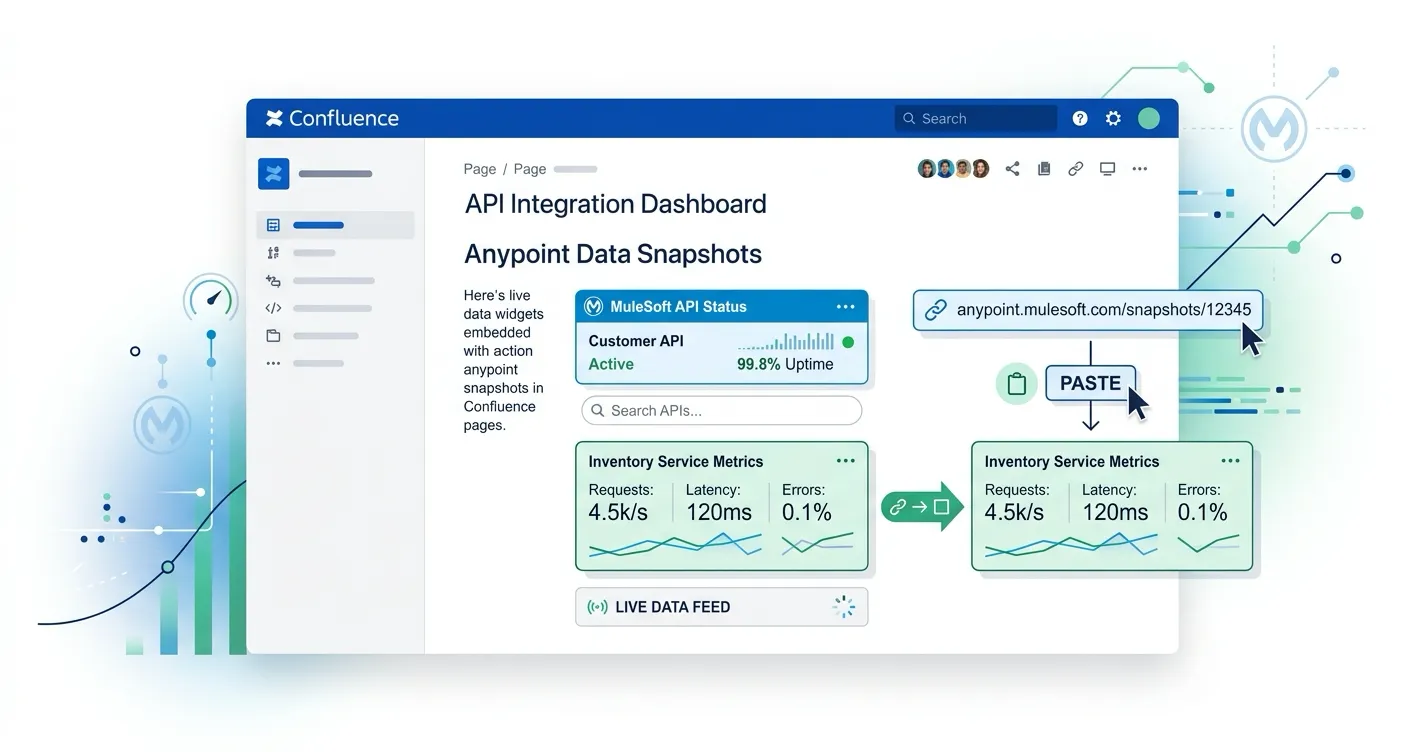
If your team documents MuleSoft integrations in Confluence, you have probably built pages with screenshots of the Anypoint Platform console. The Exchange asset page, the Runtime Manager deployment view, the API Manager instance details — captured at a point in time, pasted into a Confluence page, and immediately starting to go stale.
The problem with screenshots is that MuleSoft environments change. APIs get new versions, deployments move between environments, policies get updated, and SLA tiers shift. The screenshot stays frozen. Teams end up maintaining integration documentation that looks comprehensive but does not reflect reality.
MuleSight solves this by embedding live Anypoint snapshots directly in Confluence pages. Instead of static images, you get structured data cards that pull from your MuleSoft Anypoint Platform (Anypoint Platform is MuleSoft’s unified integration management console) and display current information inline on the page. This tutorial walks through setting up snapshot macros, choosing the right display modes, and building a macro coverage page that serves as a living integration reference.
Prerequisites
Before you begin, you need:
- A Confluence Cloud instance with space admin permissions
- MuleSight installed from the Atlassian Marketplace (go to Apps > Manage apps and search for MuleSight)
- MuleSight configured with your MuleSoft Anypoint Platform credentials for at least one Confluence space (see the Configuration guide)
- At least one MuleSoft environment with Exchange assets, Runtime Manager applications, or API Manager instances you want to document
Once MuleSight is configured for your space, the macro insertion workflow is available to any page editor in that space. Credentials are stored securely using Atlassian Forge encrypted storage and scoped to the space.
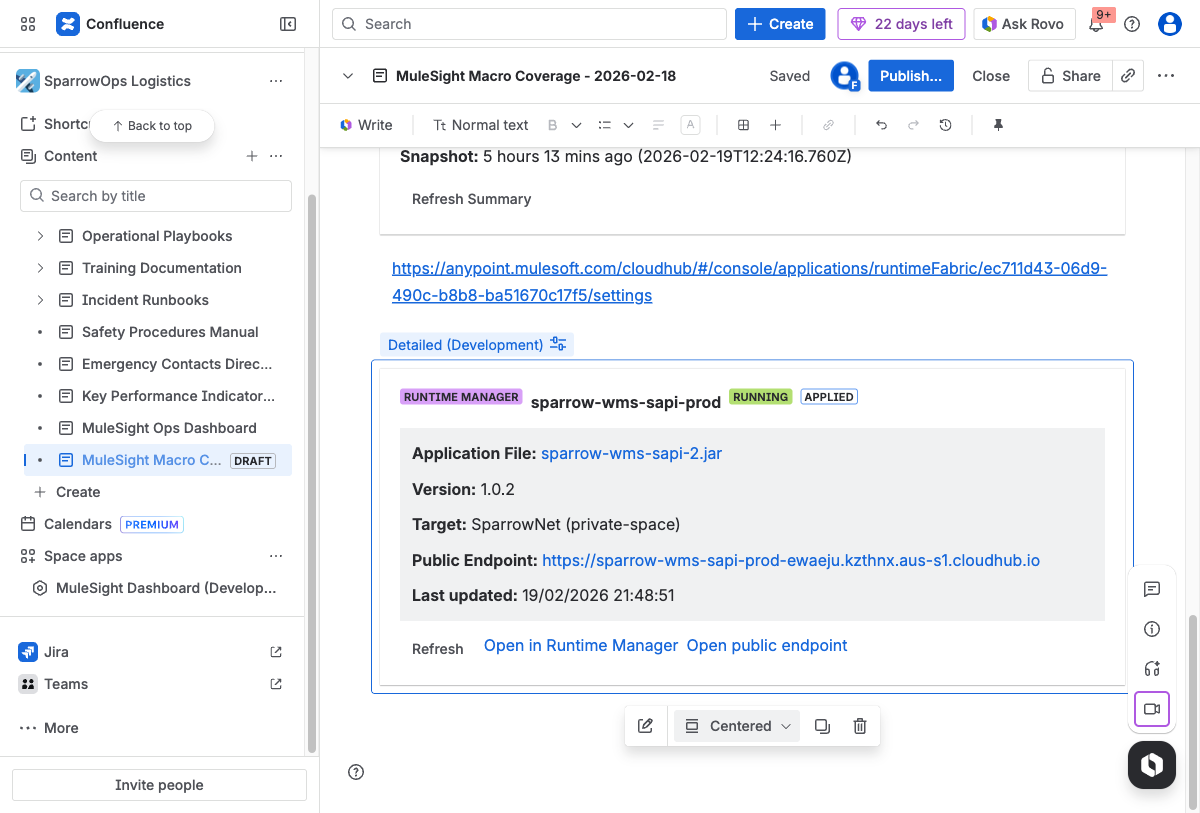
A Runtime Manager snapshot macro in Confluence edit mode. Paste an Anypoint Runtime Manager URL and MuleSight auto-converts it into a live card showing deployment status, version, target, endpoint, and last-refresh timestamp. Action links let you open the resource in Anypoint or refresh data on demand.
Understanding Macro Source Types
MuleSight offers four macro source types, each designed for a different aspect of your MuleSoft platform:
Exchange Asset Macros
Exchange assets represent your published APIs, connectors, templates, and other reusable components in MuleSoft Anypoint Exchange. The Exchange macro displays:
- Asset name, version, and lifecycle state
- Asset type classification
- Published metadata
- Direct action links back to the Exchange asset in Anypoint
Use Exchange macros when documenting API catalogs, integration inventories, or architecture reference pages where teams need to see what assets are available and their current state.
Runtime Manager Application Macros
Runtime Manager macros show the deployment state of your MuleSoft applications. They display:
- Application name and deployment status
- Runtime version and target environment
- Worker configuration and sizing
- Status indicators for running, stopped, or failed deployments
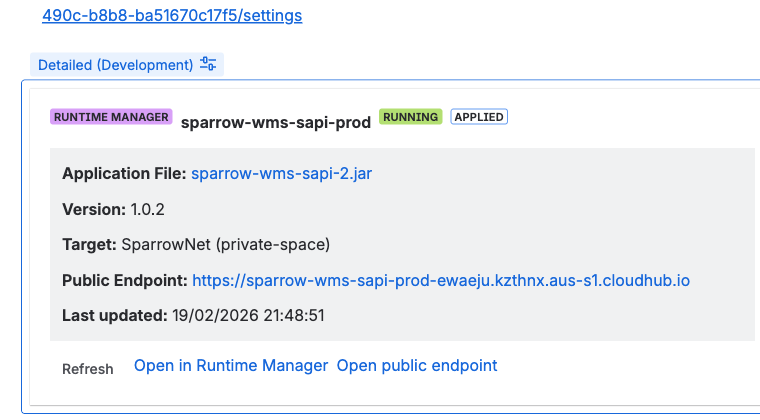
A Runtime Manager macro in Detailed mode. The card surfaces the critical operational fields — deployment status, artifact version, target environment, public endpoint, and freshness timestamp — without leaving Confluence.
Use Runtime Manager macros in runbooks, incident response pages, and operational status dashboards where teams need to see whether applications are running and where they are deployed.
API Manager Instance Macros
API Manager macros provide the richest detail. They show:
- API instance name, version, and status
- Applied policies (rate limiting, authentication, CORS, and others)
- SLA tier definitions and active contracts
- Environment and implementation details
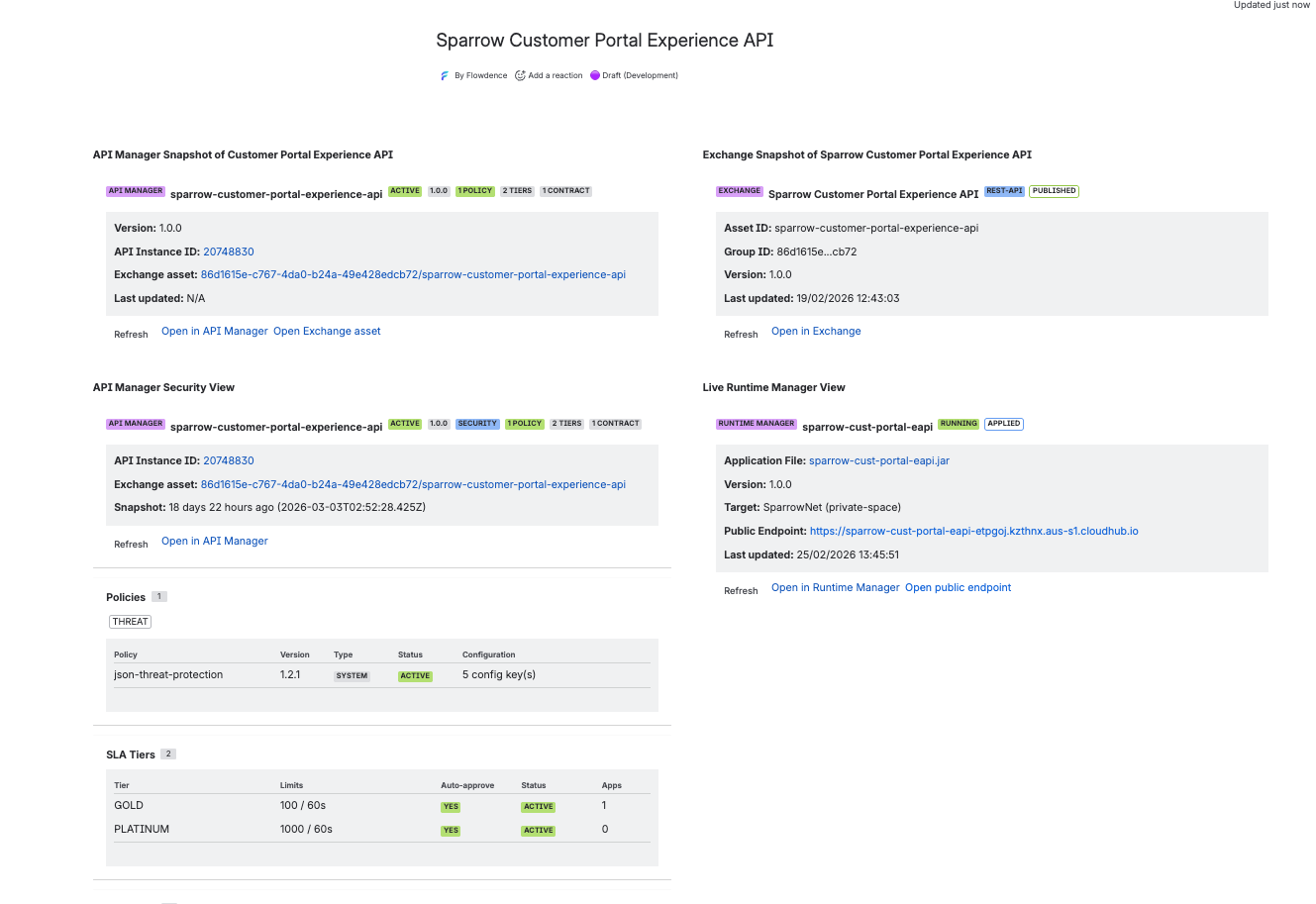
The API Manager macro is available in three display modes: Detailed, Compact, and Security. The Security mode is particularly valuable for governance and compliance discussions, as it surfaces the full policy and contract configuration for an API instance.
Environment Summary Macro
The Environment Summary macro provides a high-level drift view across your MuleSoft environments. It displays:
- Resource counts per environment
- Drift indicators showing where environments differ
- Snapshot timestamp showing when data was last fetched
Use the Environment Summary as a dashboard widget at the top of integration status pages to give readers an immediate sense of whether environments are in sync.
Display Modes: Detailed vs. Compact vs. Security
Each macro source type supports multiple display modes. Choosing the right mode depends on the context of your page:
Detailed mode renders a full card with all available metadata fields, status indicators, and action links. Use this in design documents, architecture decision records, and runbooks where readers need comprehensive information. Detailed cards take more vertical space but provide complete context.
Compact mode renders a condensed single-row view with the most critical status fields. Use this on dense status pages, comparison tables, and overview pages where you need to show many resources without scrolling. Compact mode works well when the page lists ten or more resources and readers need to scan status quickly.
Security mode (API Manager only) renders a focused view of the security posture: applied policies, SLA tier definitions, and active contracts. Use this for security review pages, governance documentation, and compliance evidence where the primary question is “what security controls are applied to this API?”
Building a Macro Coverage Page
A macro coverage page is a Confluence page that serves as a comprehensive reference for one or more MuleSoft resources. It combines multiple macro types and display modes to give readers a complete picture without leaving Confluence. Here is how to build one.
Step 1: Plan Your Page Structure
Before adding macros, decide what the page should cover. Common patterns include:
- Single API reference: One page per API showing Exchange asset, API Manager details (detailed and security), Runtime Manager deployment status, and environment summary
- Environment status dashboard: A page showing compact views of all applications in an environment with an environment summary widget at the top
- Integration runbook: A page combining detailed Runtime Manager and API Manager macros for the services involved in a specific integration flow
For this tutorial, we will build a single API reference page that uses all four macro types.
Step 2: Create the Page and Add Source Links
Create a new Confluence page in your MuleSight-configured space. Give it a descriptive title that includes the API or service name — for example, “Order Processing API — MuleSight Reference.”
For each MuleSoft resource you want to display, you need the source link from your Anypoint Platform. Navigate to the resource in the Anypoint console and copy its URL. MuleSight recognizes links from:
anypoint.mulesoft.com/exchange/...— Exchange assetsanypoint.mulesoft.com/cloudhub/...or Runtime Manager URLs — Applicationsanypoint.mulesoft.com/apimanager/...— API instances
Add these links to your page. MuleSight will convert them into macro insertion points.
Without MuleSight:
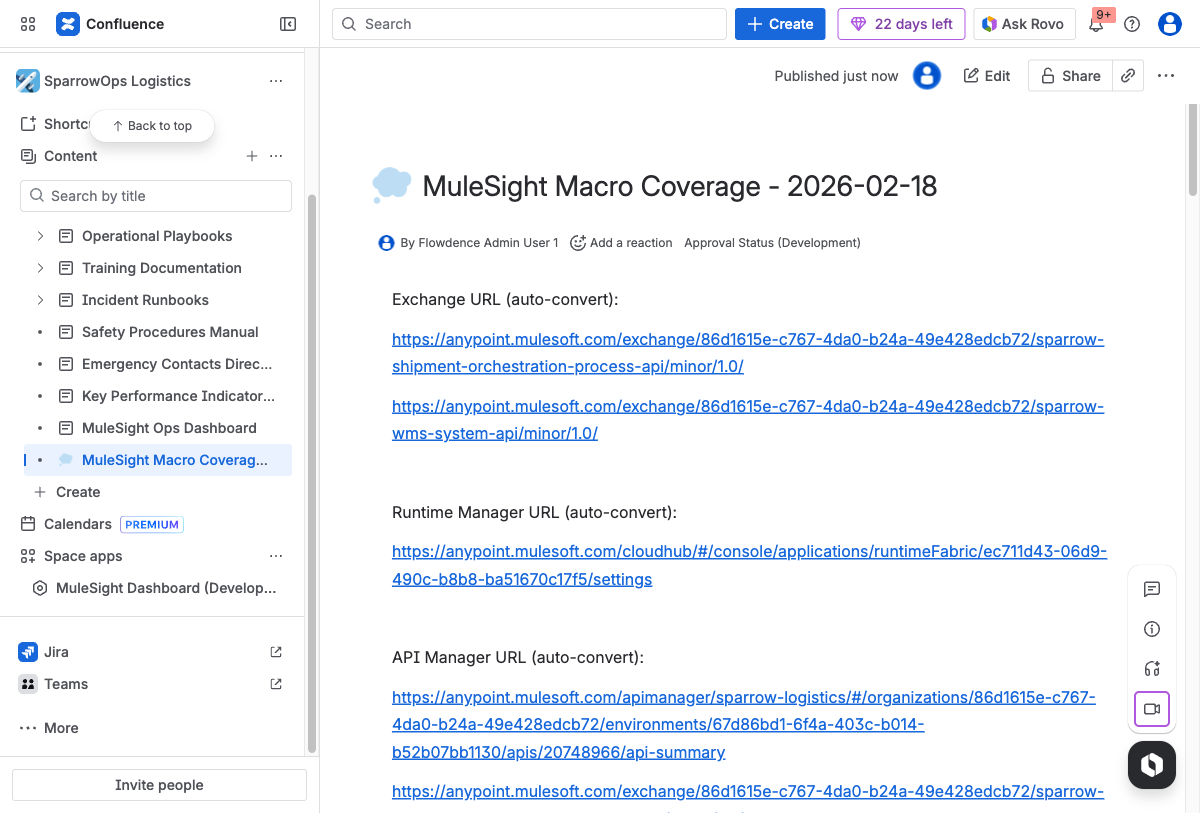
With MuleSight:
A macro coverage page after pasting Anypoint URLs. The page includes Exchange, Runtime Manager, and API Manager URLs — each labeled for auto-conversion. Once published, MuleSight converts these URLs into live snapshot macros that display current resource state.
Step 3: Configure Display Modes
For each macro, select the display mode that fits your page’s purpose:
-
Exchange asset — Use Detailed mode to show the full asset card with version, lifecycle, and metadata. This anchors the page with the canonical definition of the API.
-
Runtime Manager application — Use Detailed mode for the primary deployment and Compact mode if you want to show the same application across multiple environments in a comparison layout.
-
API Manager instance — Use Detailed mode for the general API configuration view. Add a second instance of the same macro in Security mode below it to surface policies, tiers, and contracts as a separate section.
-
Environment Summary — Add this at the top or bottom of the page as a drift dashboard. It gives readers an immediate signal about whether environments are in sync without needing to inspect individual resources.
Step 4: Validate Your Macros
After inserting macros, verify that each one renders correctly:
- Runtime cards should show application status, runtime version, and action links
- Exchange cards should show asset metadata and version information
- API Manager cards in Detailed mode should show instance configuration; in Security mode, they should show policies, SLA tiers, and active contracts
- Compact rows should display condensed status information suitable for scanning
- Environment Summary should show drift counters and a snapshot timestamp
If a macro does not render, check that the source link is valid and that MuleSight credentials are configured for the space. The First-Time Space Setup tutorial covers credential configuration in detail.
Step 5: Refresh and Publish
Before sharing the page, use the refresh action on each macro to pull the latest data from your Anypoint Platform. MuleSight uses a cache-first architecture for resilience — macros display cached data by default and update when refreshed. This means pages load quickly even when the Anypoint Platform is temporarily unreachable.
Once validated, publish the page. It now serves as a living reference that any team member can consult to see the current state of your MuleSoft resources without opening the Anypoint console.
Operational Patterns for Snapshot Pages
Once you have macro coverage pages in place, several operational patterns become possible:
Incident response documentation. During an incident, link to the macro coverage page for the affected service. Responders can see current deployment status, applied policies, and environment state on one page. Refresh macros during the incident to capture state changes in real time.
Architecture review preparation. Before an architecture review meeting, create a page with Detailed macros for all services under discussion. Reviewers can examine API configurations, security posture, and deployment topology before the meeting without needing Anypoint access.
Compliance evidence collection. For SOC 2 or ISO 27001 audits that require evidence of API security controls, create a page with Security mode macros showing applied policies and SLA configurations. The page serves as point-in-time evidence that can be refreshed and exported as needed.
Onboarding new team members. New engineers joining the team can review macro coverage pages to understand the integration landscape without needing Anypoint credentials or training on the console. The Confluence page surfaces the information they need in a familiar interface.
Tips for Effective Snapshot Pages
Use Detailed mode for documentation depth, Compact mode for dashboards. A runbook benefits from seeing every field on a Runtime Manager card. A status dashboard that lists twenty applications needs compact rows to stay scannable.
Group macros by concern, not by type. On a single API reference page, arrange sections as “Overview” (Exchange Detailed), “Security Posture” (API Manager Security), “Deployment Status” (Runtime Manager Detailed), and “Environment Health” (Environment Summary). This structure follows how readers think about a service, not how MuleSight categorizes macros.
Refresh before sharing. Before linking a macro coverage page in a Slack thread, email, or meeting invite, refresh the macros to ensure readers see current data.
Tip: When building macro coverage pages for incident response, include both Detailed and Security mode macros for the same API. Detailed mode shows operational state while Security mode shows the policy and contract configuration — giving responders the complete picture without navigating to multiple pages.
Create one macro page per integration boundary. For complex systems, create separate pages for each service or API boundary rather than cramming everything onto one page. Link pages together using Confluence’s page tree or cross-references.
Getting Started
MuleSight is available on the Atlassian Marketplace and runs entirely on Atlassian Forge — no external subprocessors, with credentials stored using Forge encrypted storage within your Atlassian infrastructure.
Visit the MuleSight product page for an overview of all capabilities. For step-by-step configuration, start with the Installation guide. For a complete walkthrough of building your first macro page, see the Build a MuleSight Macro Coverage Page tutorial in the product documentation.