
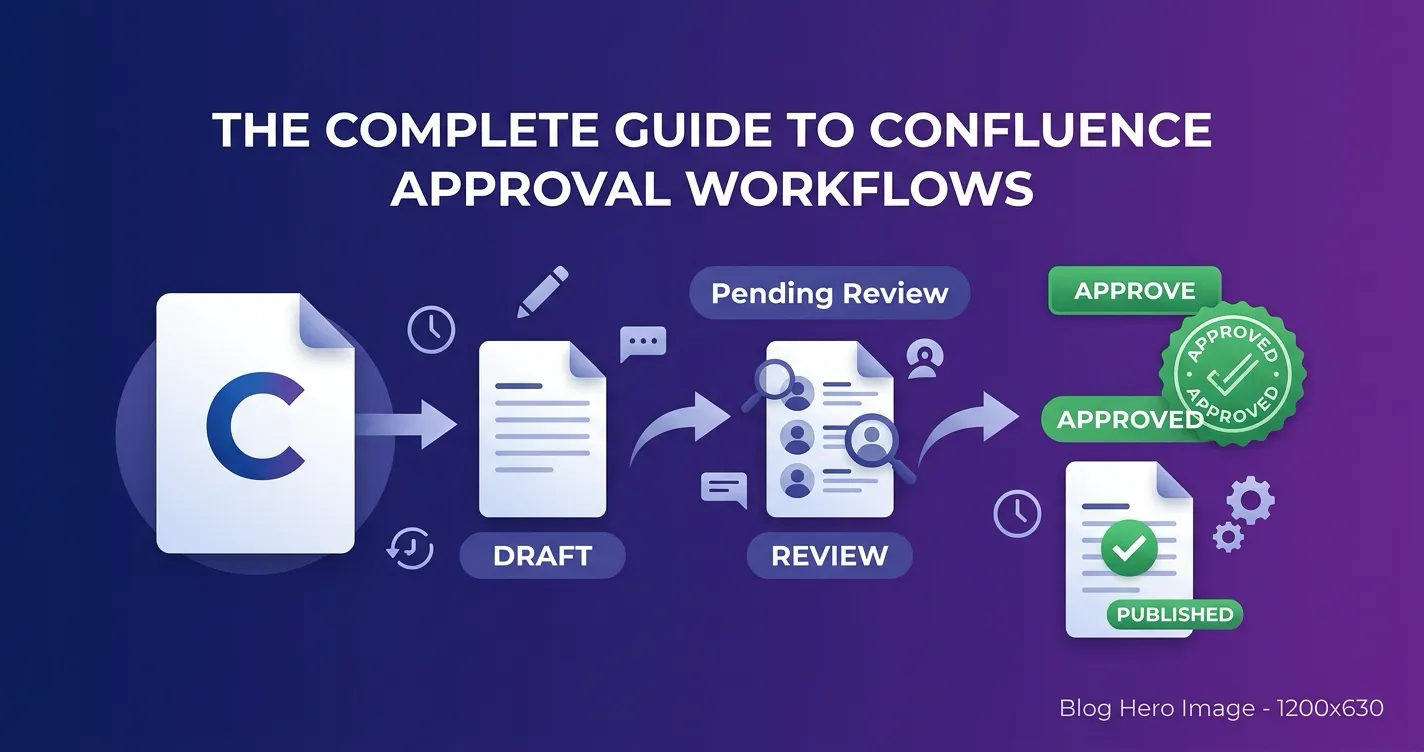
If your organization uses Confluence Cloud for documentation, policies, or knowledge base content, you have likely run into the same question: how do you ensure the right people review and approve a page before it is treated as final?
Confluence is excellent for collaborative editing, but it was not designed with formal approval workflows in mind. There is no built-in approval gate, no enforced review process, and no audit trail that records who signed off on what.
This guide covers everything you need to know about approval workflows in Confluence in 2026 — from native workarounds to third-party apps, multi-step processes, version tracking, compliance requirements, and how to choose the right approach for your team.
Why Approval Workflows Matter in Confluence
Not every Confluence page needs an approval workflow. Team meeting notes and brainstorming pages are fine without one. But certain types of content carry real consequences if they go live without proper review:
- Policies and SOPs — Publishing an unapproved policy can create legal and regulatory exposure
- Compliance documentation — SOX, ISO 27001, HIPAA, and GxP frameworks require documented sign-off chains
- Customer-facing content — Knowledge base articles, help docs, and product guides need accuracy review before publishing
- Technical specifications — Architecture decisions and runbooks that teams depend on need expert validation
- Financial reports — Internal documents that inform business decisions need stakeholder approval
Without an enforced approval process, you rely on people remembering to review content before it is shared. That works until it does not — and the cost of a missed review can range from embarrassment to regulatory penalties.
What Confluence Offers Natively
Confluence Cloud provides two features that teams commonly repurpose for approvals. Neither was designed as an approval workflow, and both have significant limitations.
Page Statuses
Confluence lets you set a status label on any page — Draft, In Progress, Ready for Review, or a custom status. This is a visual indicator, not a workflow. Anyone with edit access can change the status at any time, there is no notification system tied to status changes (beyond automation rules), and there is no record of who changed the status or when.
What works: Simple visual signaling for small teams who communicate directly about reviews.
What does not work: Any scenario where you need to enforce that a review happened, track who reviewed it, or prevent content from being treated as final without sign-off.
Confluence Automation
You can build basic automation rules that trigger when a page status changes. For example: when status changes to “Ready for Review,” send an email to a list of reviewers. When status changes to “Approved,” notify the author.
This gets you notifications, but not enforcement. The automation email does not include approval buttons — reviewers need to navigate to the page and manually change the status. There is no concept of a quorum (requiring multiple approvers), no sequential routing through steps, and no audit trail beyond the automation log.
What works: Sending notifications when someone manually changes a status. Basic reminder workflows.
What does not work: Multi-approver scenarios, sequential review steps, version tracking, or compliance-grade audit trails.
The @Mention Workaround
Some teams use @mentions in page comments as an informal approval process: the author @mentions reviewers, reviewers reply with “approved” in a comment, and someone checks that all required approvals are present.
This falls apart quickly:
- Notifications can be missed or buried
- There is no reliable way to check if all required approvers have responded
- Comments do not distinguish between “approved” and a general discussion reply
- There is no connection between the approval and the page version — if someone edits the page after approval, the approval comment still appears valid
- Auditing requires manually scrolling through comment threads
The Third-Party App Landscape
Because Confluence lacks native approval workflows, several Marketplace apps fill this gap. The three most relevant options for Confluence Cloud in 2026 are:
Page Approval for Confluence (Appfire)
The most established player with approximately 1,800 installs. Originally free, it moved to a paid subscription model in 2024.
Strengths:
- Wide adoption and long track record
- Approval templates that can be applied per-page or per-space
- Quorum-based approvals (require N of M approvers)
- Email notifications to reviewers
- Data Center and Server support
Limitations:
- No multi-step sequential workflows — all approvers operate in a single round
- No version-aware tracking (approvals are not tied to specific page versions)
- Pricing starts at $175/year for 25 users, scaling to $37,925 for large instances
Best for: Teams that need a straightforward, single-round approval process with quorum support and want the reassurance of a widely-adopted app.
Approvals for Confluence (AppFox)
A lightweight approval app with approximately 1,068 installs, focused on simplicity.
Strengths:
- Clean, minimal interface
- One-click approve/reject from the page
- Space-level configuration
- Cloud-first design
Limitations:
- Limited workflow complexity — no multi-step sequential routing
- No built-in analytics or reporting
- No version-aware approval tracking
Best for: Small teams that need a simple approve/reject gate without complex workflow requirements.
ApprovalFlow for Confluence (Flowdence)
Built on Atlassian Forge, ApprovalFlow is designed for teams that need structured, multi-step approval processes with full compliance capabilities.
Strengths:
- Multi-step sequential workflows — Configure two or more approval stages with different approvers at each step
- Version-aware resubmission — Approvals are tied to specific page versions. Edit an approved page and the system flags it for re-review
- Workflow analytics — KPI dashboards with status breakdowns, daily trends, and workflow comparison. Export as CSV or HTML
- Complete audit trail — Every action recorded with timestamps, version numbers, and decision comments
- Byline-based status — Colored status lozenges (Draft, In Approval, Approved, Changes Requested) visible in the page byline
- Comment-based notifications — Approvers notified via @mentions in threaded comments
- Cross-space workflow import — Reuse workflows across spaces without rebuilding them
- Manage Space view — Tree view of your space showing pages, approval status, and assigned workflows
- Zero external subprocessors — All data stays within Atlassian Forge infrastructure
Limitations:
- Newer to the Marketplace than Page Approval
- Soft workflow model (pages are not locked during review)
Best for: Teams that need multi-step approval routing, version tracking, analytics, and compliance-grade audit trails. Particularly relevant for regulated industries (financial services, healthcare, pharmaceuticals) and organizations with SOX, ISO 27001, or GxP requirements.
Pricing: Free for up to 10 users, then $0.20/user/month for teams of 251–1,000 users. All plans include a 30-day free trial.
Single-round approvals with quorum support and broad adoption track record
Small teams needing simple approve/reject without workflow complexity
Multi-step sequential workflows with version tracking, analytics, and compliance audit trails
Choosing the Right Approach
The right approval workflow setup depends on your team size, compliance requirements, and how complex your review processes are.
Use this decision tree to determine which approval approach fits your team’s requirements.
Use native Confluence if:
- Your team is fewer than 10 people
- Reviews are informal and trust-based
- You do not need an audit trail
- A visual status indicator is sufficient
Use a single-step approval app if:
- You need an enforced approval gate (not just a status label)
- One round of approval is sufficient
- You do not need version tracking
- Quorum-based approval (N of M) meets your requirements
Use a multi-step approval app if:
- Content must pass through sequential review stages (e.g., technical review → legal review → executive sign-off)
- You need approvals tied to specific page versions
- Compliance or audit requirements demand a traceable history of every approval action
- You want analytics to monitor approval velocity and bottlenecks
- Your organization operates in a regulated industry
Setting Up a Multi-Step Approval Workflow
If your requirements point toward a multi-step workflow, here is how the process works with ApprovalFlow:
Step 1: Create a Workflow
Navigate to any Confluence space and open the ApprovalFlow settings. Define your approval steps in sequence. For each step, you specify:
- Step name — A descriptive label (e.g., “Technical Review,” “Legal Approval,” “Final Sign-Off”)
- Approvers — The Confluence users or groups who can approve at this step
- Approval mode — Whether any single approver can advance the page, or all assigned approvers must approve
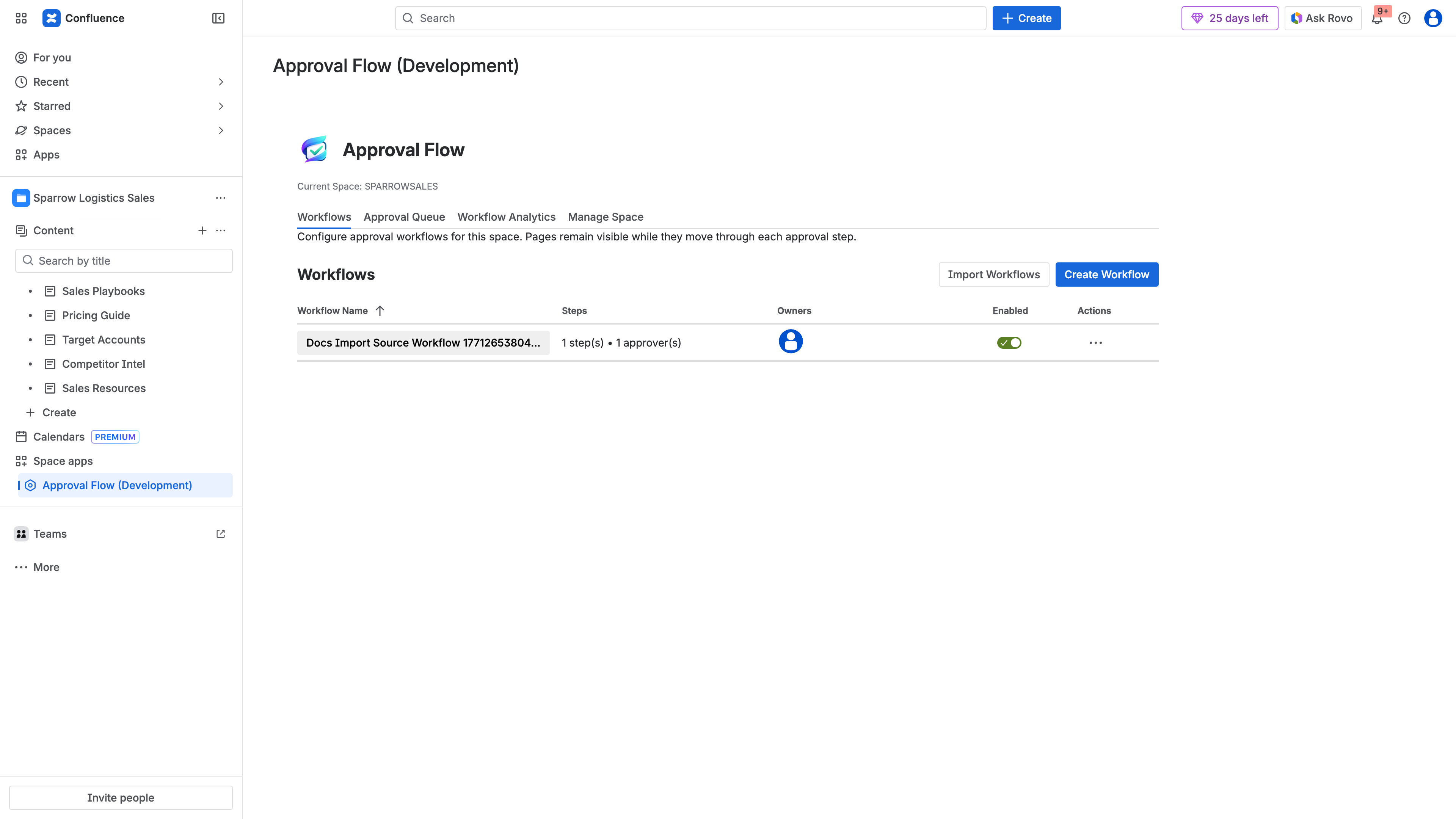
The ApprovalFlow Workflows tab showing all configured workflows for a space. Each workflow can be enabled, disabled, edited, or duplicated from this view.
Step 2: Submit a Page for Approval
Once a workflow exists in a space, any editor can submit a published page for approval from the content byline. If multiple workflows are available in the space, the author selects which one applies. The page status changes to “In Approval” and the first step’s approvers are notified via @mentions in a page comment.
Step 3: Review and Decide
Approvers see the notification and navigate to the page. They can:
- Approve — Optionally with a comment explaining their decision
- Reject — With a required comment explaining what needs to change
If rejected, the author revises the page and resubmits. If approved, the workflow advances to the next step and its approvers are notified.
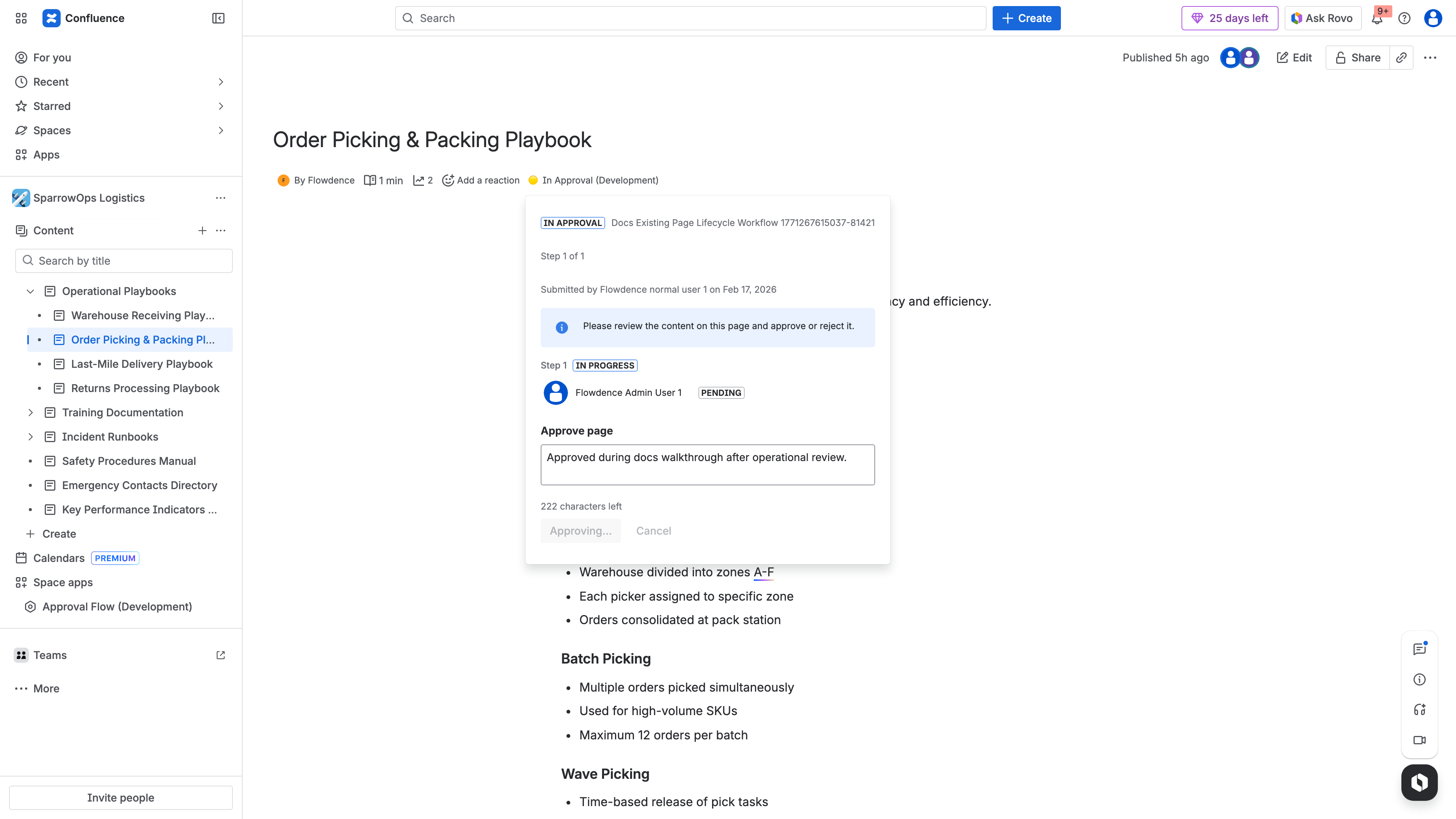
Once all approval steps are completed, the page byline shows Approved status with the approver details and version number.
Step 4: Track Progress
The Manage Space view shows a tree of all pages in your space with their current approval status, assigned workflow, and which step each page is on. The analytics dashboard provides aggregate views: how many pages are approved versus pending, average time to approval, and trends over time.
Version-Aware Approvals: Why They Matter
One of the most overlooked risks in content governance is post-approval edits. A page gets approved, someone makes a “minor” edit afterward, and the page continues to carry its “Approved” status even though the approved version is no longer what the page says.
In regulated environments, this is a compliance violation. The audit trail shows an approval, but the current page content does not match what was actually reviewed and approved.
Version-aware approval solves this by tying each approval to a specific page version number. When someone edits an approved page:
- The system detects that the current version differs from the approved version
- The status updates to reflect that a newer version exists
- The author can resubmit the new version for approval
- The audit trail maintains separate records for each version’s approval
This is not a nice-to-have feature for teams in financial services, healthcare, pharmaceuticals, or any industry subject to document control requirements. It is a fundamental requirement.
Building an Audit Trail That Satisfies Compliance
A compliance-grade audit trail for page approvals needs to answer five questions for any given page at any point in time:
- Who approved it? (Named individuals, not just “it was approved”)
- When did they approve it? (Timestamps, not relative dates)
- What version did they approve? (Specific page version number)
- What did they say? (Decision comments and any conditions)
- What was the sequence? (Which steps were completed, in what order)
Native Confluence cannot answer any of these questions reliably. An informal comment-based process might partially answer questions 1 and 4, but not the rest.
ApprovalFlow’s audit trail records every action — submission, approval, rejection, resubmission — with full context. This creates a defensible record that can be presented during internal audits, external compliance reviews, or regulatory examinations.
Common Pitfalls to Avoid
After working with teams implementing approval workflows in Confluence, these are the mistakes we see most often:
Over-engineering the workflow
Start with the simplest workflow that meets your requirements. A three-step approval process is not better than a one-step process unless you actually need three separate review gates. Every additional step adds cycle time and friction.
Not accounting for page edits after approval
If your approval process does not track page versions, you have a gap. Someone will edit an approved page — not maliciously, but because they noticed a typo or wanted to add a detail. Without version tracking, that edit is invisible to the approval process.
Ignoring the notification problem
An approval workflow is only useful if approvers actually see and act on requests. Email notifications get buried. @mentions in comments are better but still imperfect. Whatever tool you choose, make sure your approvers have a reliable way to see pending requests — whether that is a dashboard, a filtered view, or a daily digest.
Applying approvals to everything
Not every page needs an approval workflow. Applying workflows too broadly creates approval fatigue and slows down your team. Reserve formal approvals for content where the consequences of publishing without review justify the process overhead.
Forgetting analytics
If you cannot measure how your approval process performs — average cycle time, bottleneck steps, approval rates — you cannot improve it. Choose a tool that gives you visibility into how workflows are actually functioning, not just whether individual pages were approved.
Getting Started
If you are evaluating approval workflows for Confluence, here is a practical path forward:
-
Identify your requirements — Do you need single-step or multi-step? Version tracking? Audit trail? Analytics? List what is mandatory versus nice-to-have.
-
Try the free tiers — All three major apps offer free usage for up to 10 users. Install them in a test space and run through your actual approval scenarios.
-
Test your compliance scenarios — If you have audit or compliance requirements, specifically test whether the tool produces the evidence your auditors need. Run a mock audit against the approval history.
-
Start narrow, expand later — Roll out to one space or one team first. Refine your workflow configuration based on real usage before expanding across your organization.
-
Measure from day one — Establish baseline metrics (time to approval, rejection rate, pages pending review) so you can track whether the process is working and where it needs adjustment.
Install ApprovalFlow free from the Atlassian Marketplace and set up your first multi-step workflow in minutes. For setup instructions, see our step-by-step tutorial or the full documentation.